How to Configure Shift Lock and Reminders
Last updated: May 10, 2026
You can now configure when shifts lock for foreman and workers directly in your settings. This allows you to customize the timing to match your payroll schedule.
Simply adjust the timing settings to match your preferred schedule, whether that's end of day Monday, Tuesday, or any other timing that works for your payroll process.
Accessing Shift Lock Settings
To configure your shift lock schedule:
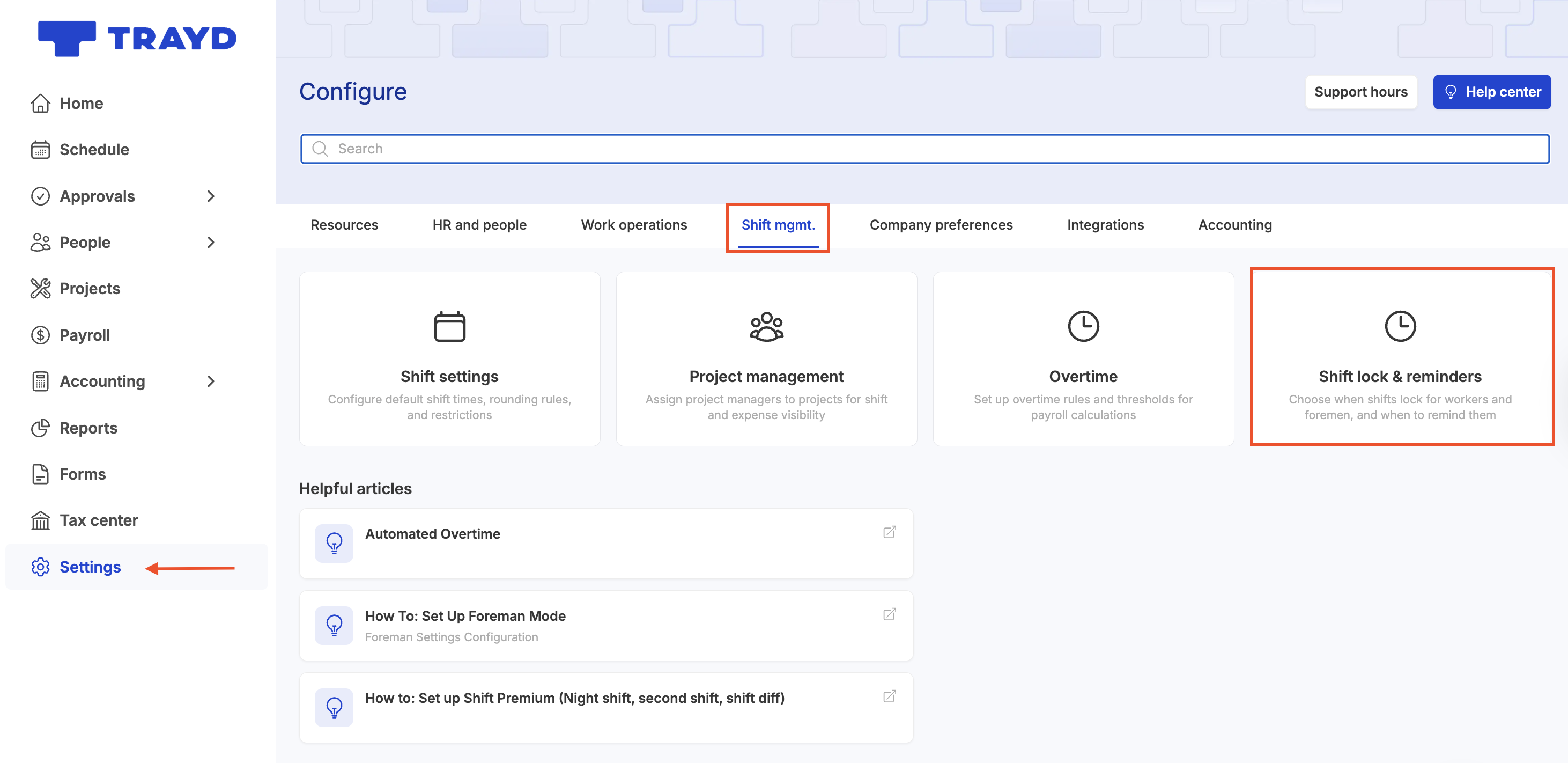
Go to Settings
Select Shift mgmt.
Click on Shift lock & reminders
Configuring Lock Settings
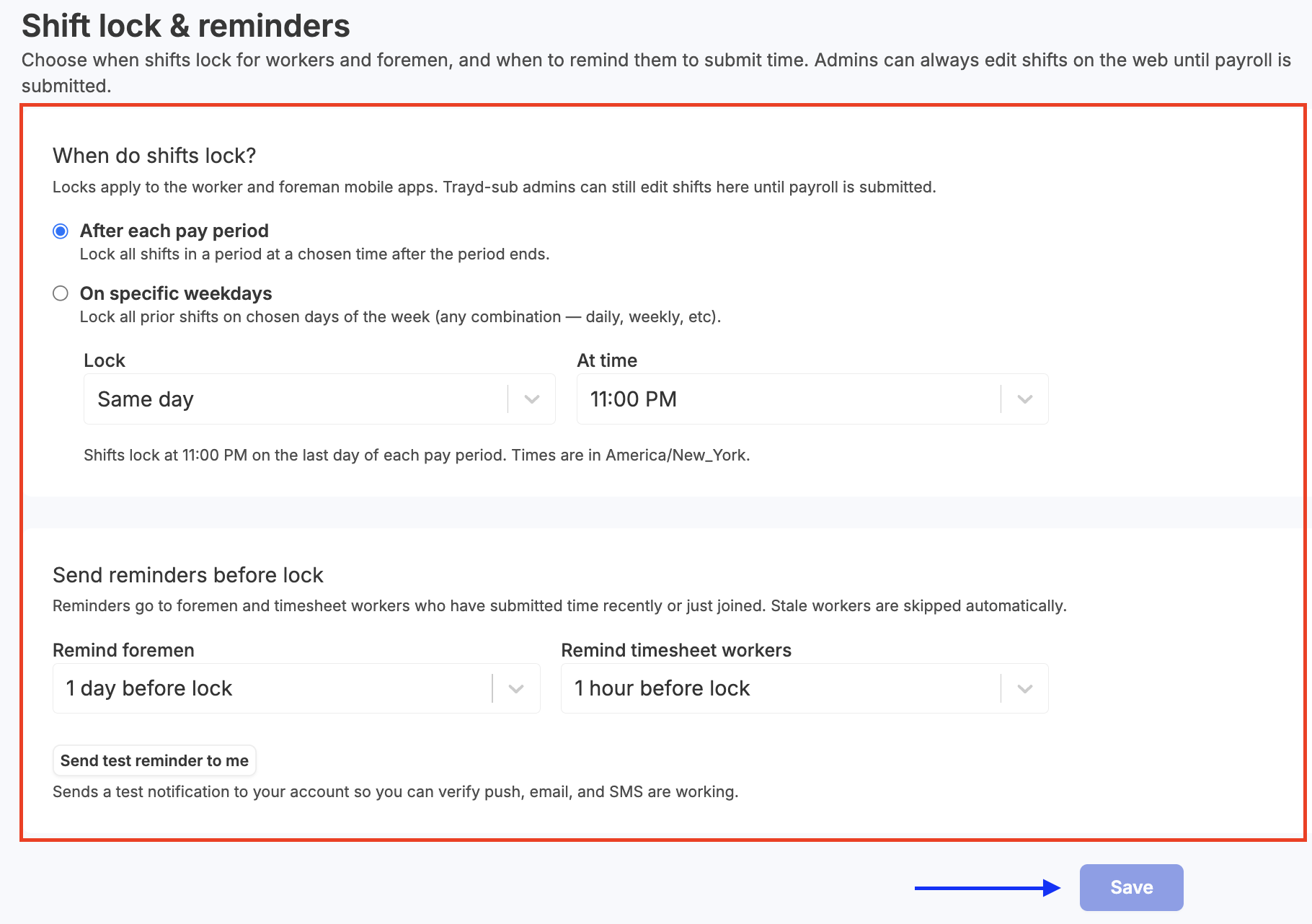
Decide when to lock shifts - Users can set the specific days and time for when timesheets will lock.
After each pay period: Shifts will be locked either same day or 1-3 days after the pay period ends, at a time specified by admin
On specific weekdays: Shifts will be locked on one or multiple weekdays, at a time specified by admin.
Set reminders - Set up automatic reminders to foreman and/or workers, alerting them a shift lock will be occurring.
Admin can send test reminders to ensure push, email and SMS notifications are working as expected.
Click Save
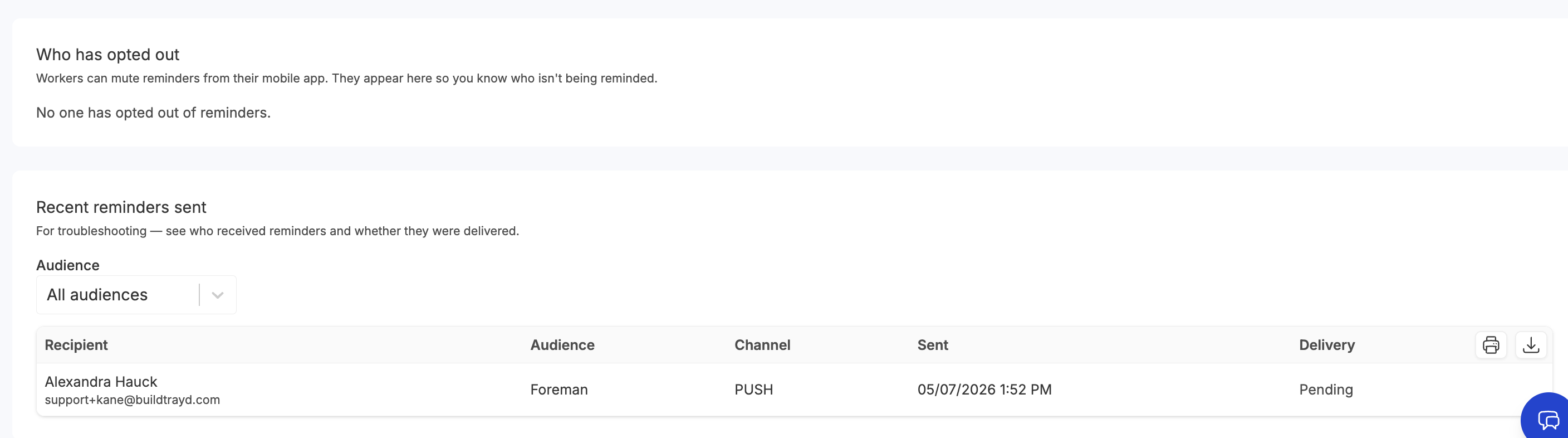
Notification Visibility
In addition to setting up reminders, admin will have visibility into recent reminders as well as who may or may not be notifications these important notification.
View opt-outs - See who has opted out of reminder notifications from the mobile app
Recent reminders sent - Track reminder history and see any reminders that may not have been delivered