[New] PTO policies: Create and manage time off policies
Last updated: April 19, 2026
Create and manage PTO policies
You can now create PTO policies with flexible accrual methods, detailed rollover rules, tenure-based earning, and automated approval controls—all in one place.
This guide walks through everything you can configure.
What’s changed
We’ve redesigned PTO policies to give you more control and clarity.
Your existing policies remain unchanged
You can edit any current policy to use the new features.
New fields are marked with a 💡 icon, so you can quickly see what’s been added
Editing a policy only impacts future accruals—existing worker balances stay as-is.
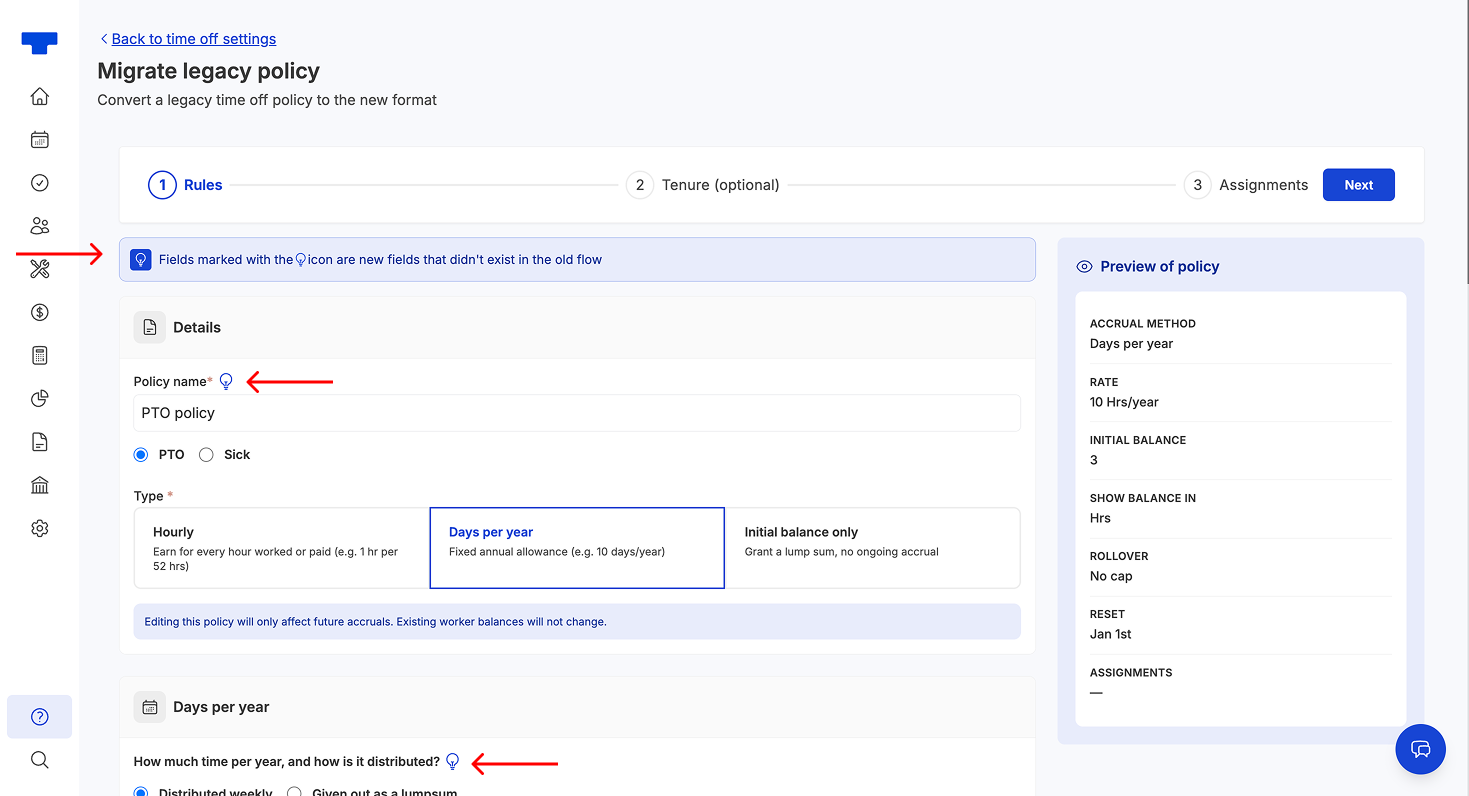
What’s included in the new flow
Balance controls: Initial balance, Max balance, Yearly allowance limit, Starting Balance)
Custom rollover functionality: Unused balance options, Year reset options, Negative balance options, Termination balance options
Requests auto approval custom options
Assignments by worker, department or job title
Policy preview always on the right side
Better, easier policy building experience with more guidance
How it works
1. Policy Details:
Give your policy a name. This is a new field, so you'll see a lightbulb next to the field.
Select PTO or Sick as your policy type.
Important note: You can't edit policy type for existing policies.
Define accrual type:
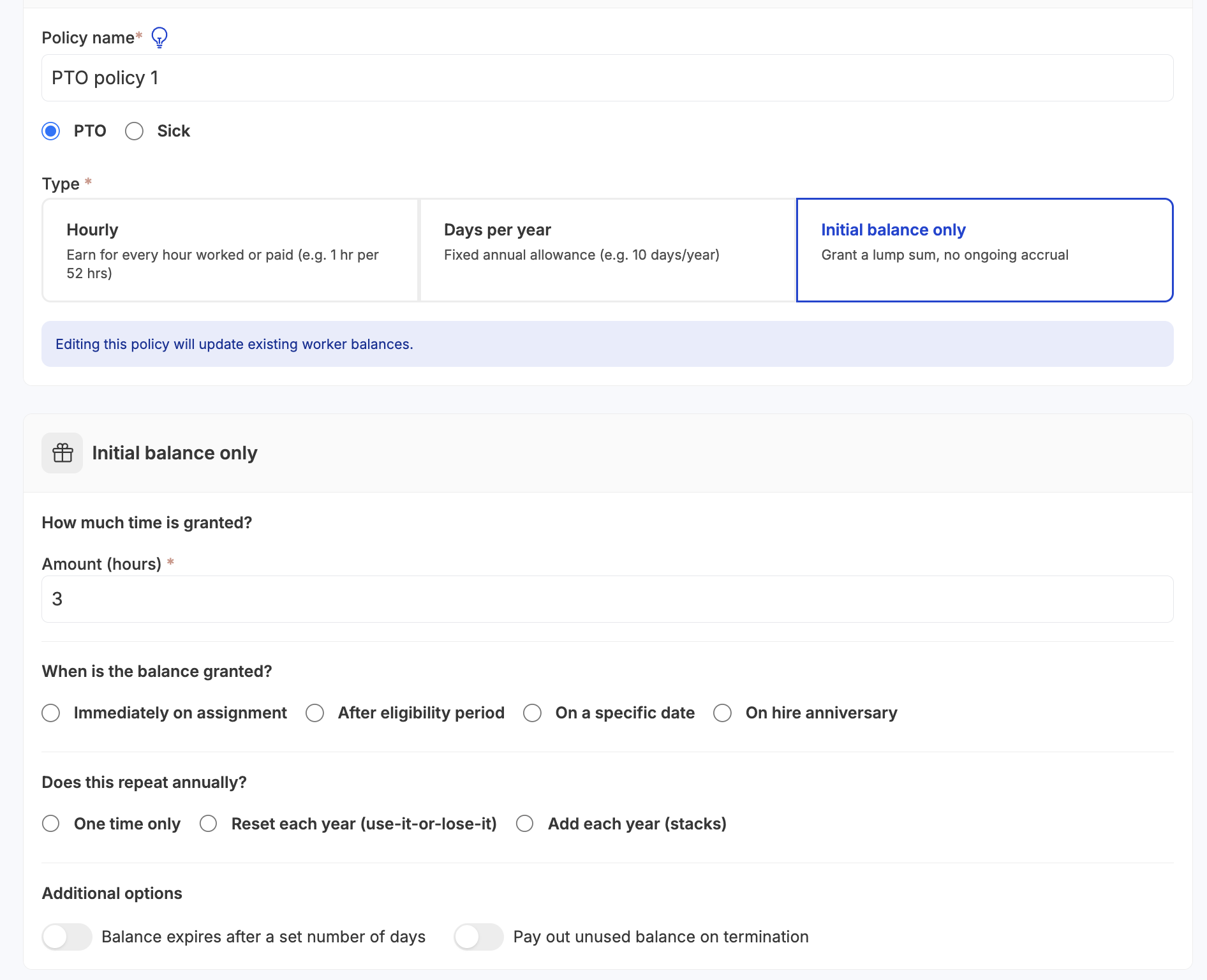
Hours per hour worked: Workers earn PTO based on time worked or paid. Options:
Hours worked (only hours worked)
Hours paid (includes vacation, sick, holiday, etc.)
Optional: Include overtime hours in accrual
Set accrual rate:
“For every X hours worked, earn 1 hour of PTO”
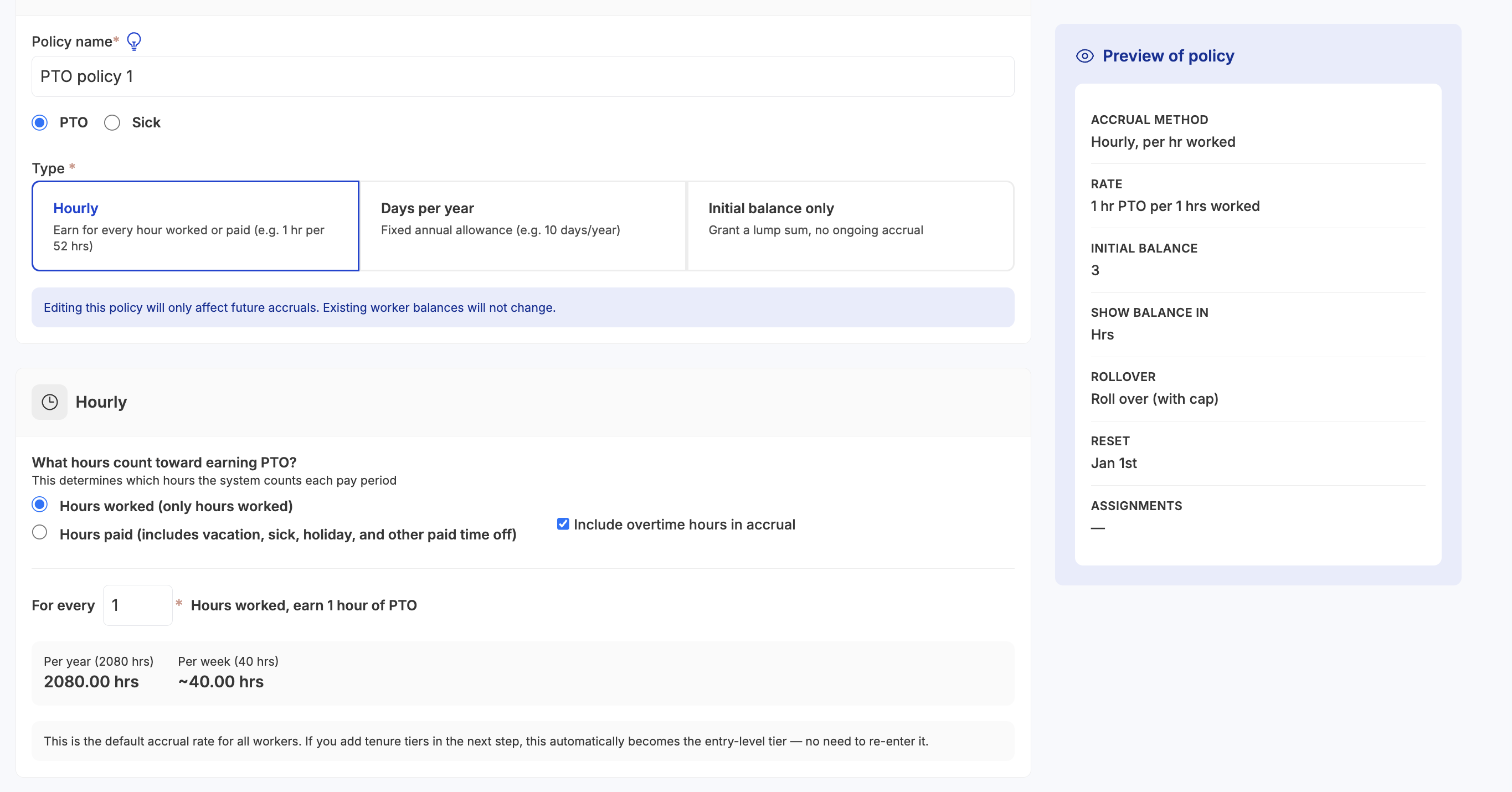
Days per year: A fixed yearly allowance. Example: 10 days of PTO per year.
Choose how it’s distributed:
Distributed weekly (auto-calculated per period)
Given as a lump sum
Set:
Days per year
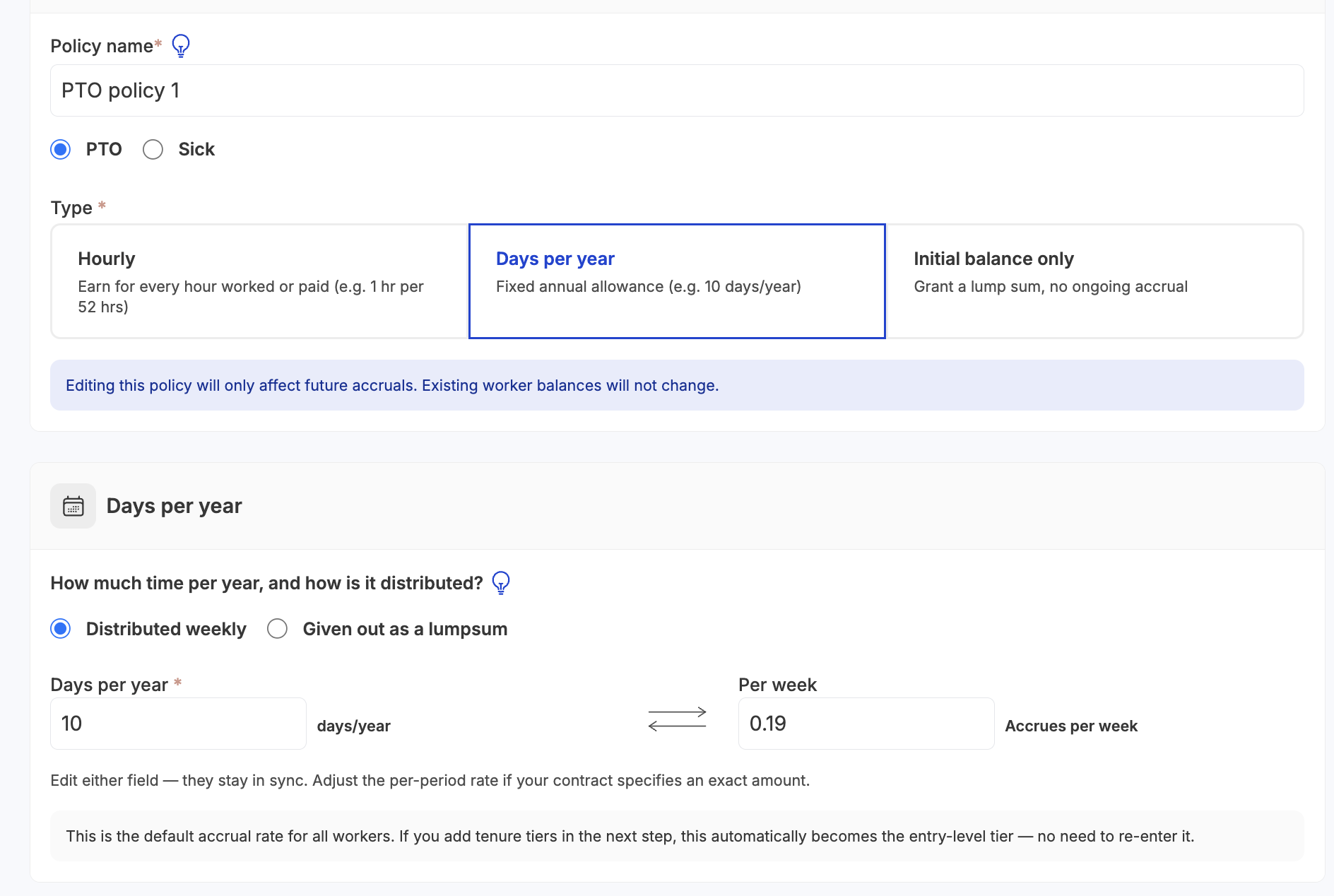
Initial balance only: Grant a fixed amount with no ongoing accrual.
Best for one-time grants or manual policies.
Select:
How much time is granted.
When the balance is granted: Instantly, After eligibility, Custom date or on Worker hire anniversary
If it repeats annually
If and when the balance expires, and if its paid out on termination
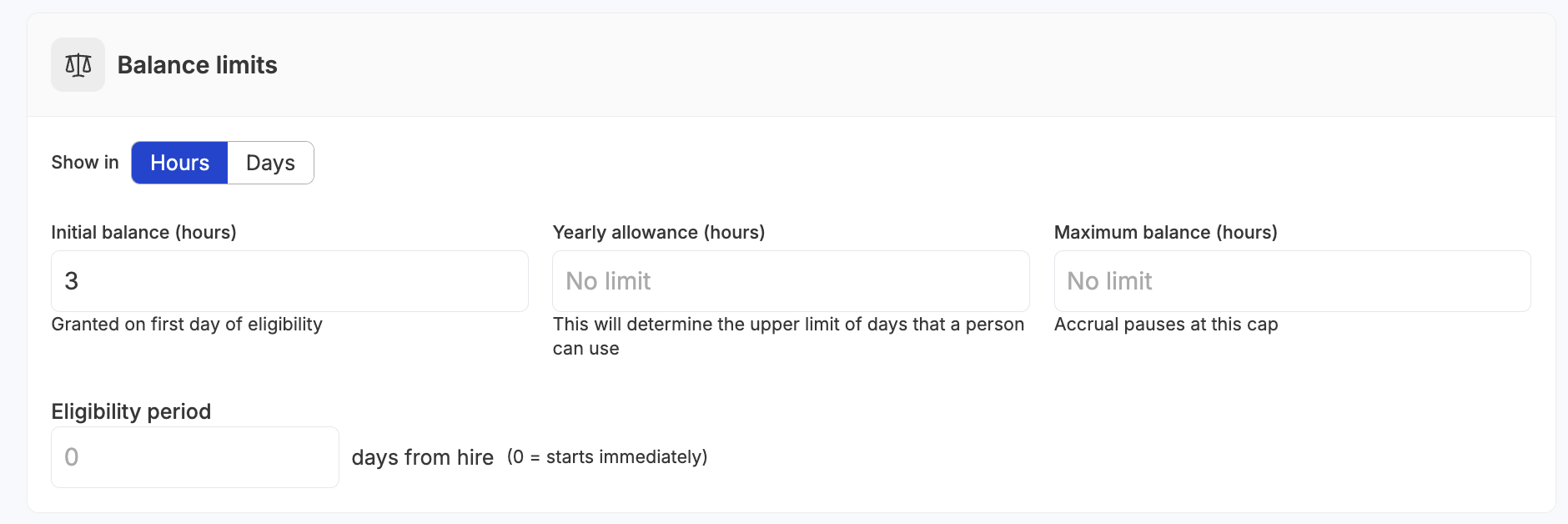
Step 2: Balance limits & eligibility
Control how balances behave:
Initial balance
Granted on first day of eligibility.
Yearly allowance
Total amount that a person can use per year.
Maximum balance
Cap where accrual stops.
You can display all balances in:
Hours
Days
Eligibility period
Define when workers can start accruing:
Immediate (0 days)
After a set number of days from hire
Step 3: Rollover & year-end rules
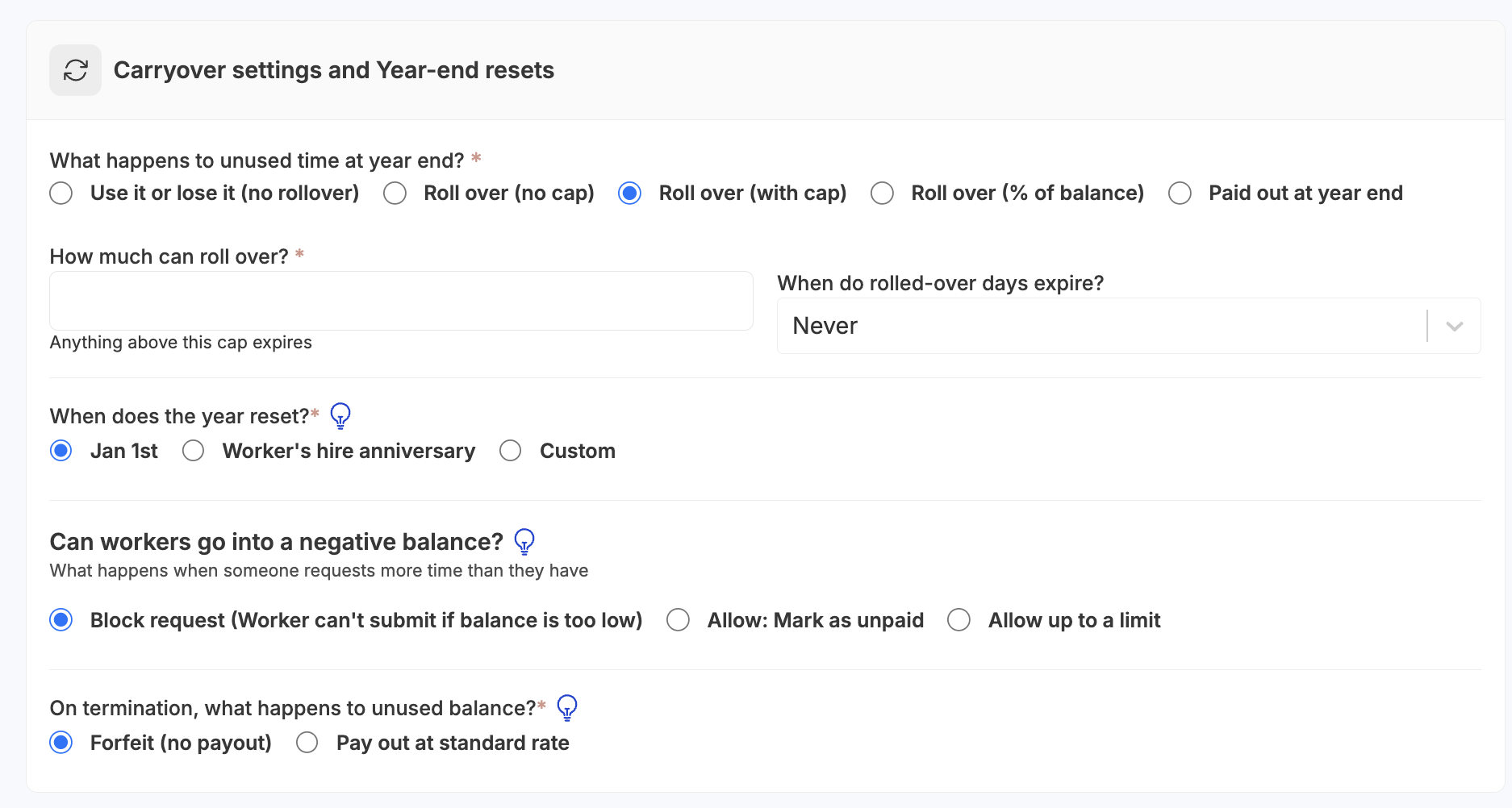
Define what happens to unused PTO.
Year-end behavior
Choose one:
Use it or lose it (no rollover)
Roll over (no cap)
Roll over (with cap): Set max rollover amount and when carried over expires.
Roll over (% of balance): Set percentage that carries over and when carried over expires.
Paid out at year end
Reset timing
Choose when balances reset:
Jan 1st
Worker’s hire anniversary
Custom date: Set month and day
Negative balance handling
Control what happens if a worker requests more time than they have:
Block request
Allow (mark as unpaid)
Allow up to a limit: Set a negative balance limit
Termination behavior
When a worker leaves:
Forfeit unused balance
Pay out at standard rate
Step 4: Advanced rules
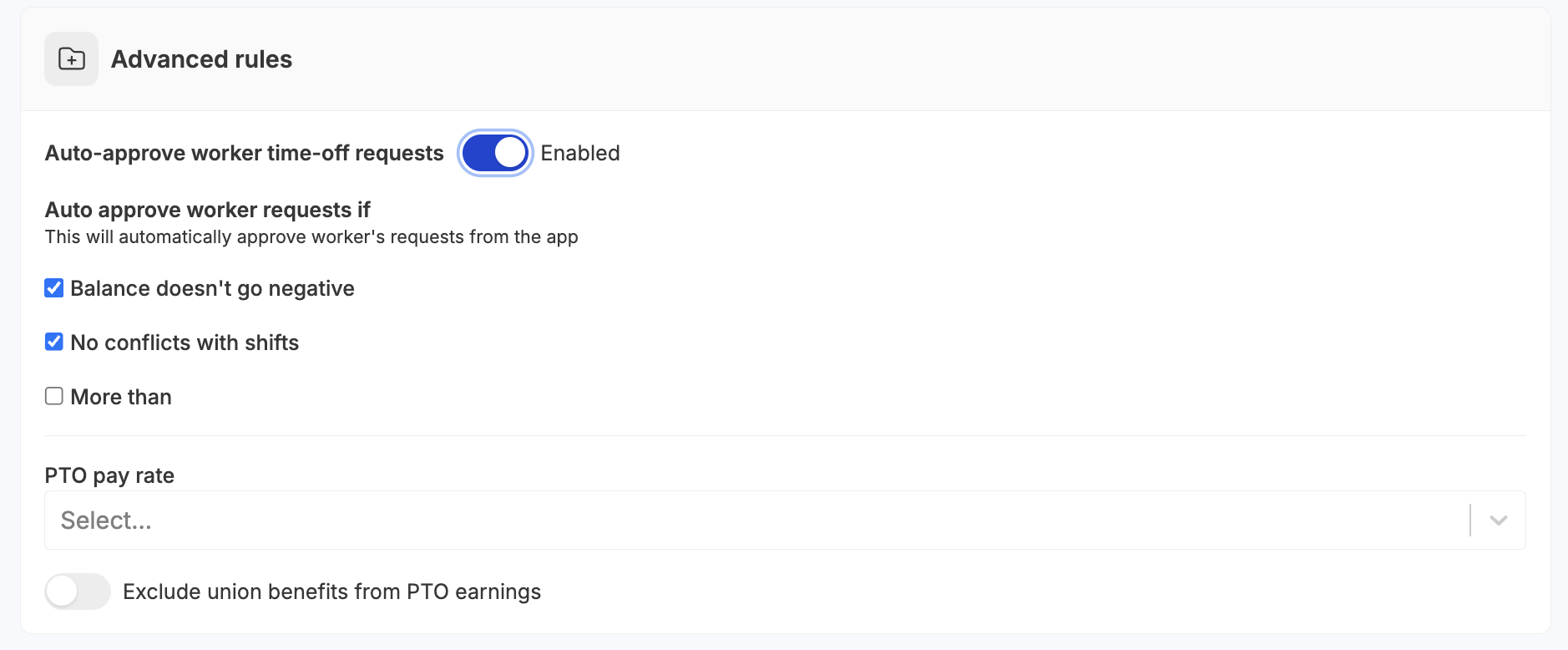
Add automation and guardrails:
Auto-approve time off
Automatically approve requests based on conditions:
Balance doesn’t go negative
No conflicts with scheduled shifts
Optional: only if request is more than X days away
PTO pay rate
Define how PTO is paid:
Select rate (or default behavior)
Optional:
Exclude union benefits from PTO earnings
Step 5: Tenure tiers (This step is entirely optional and can be skipped)
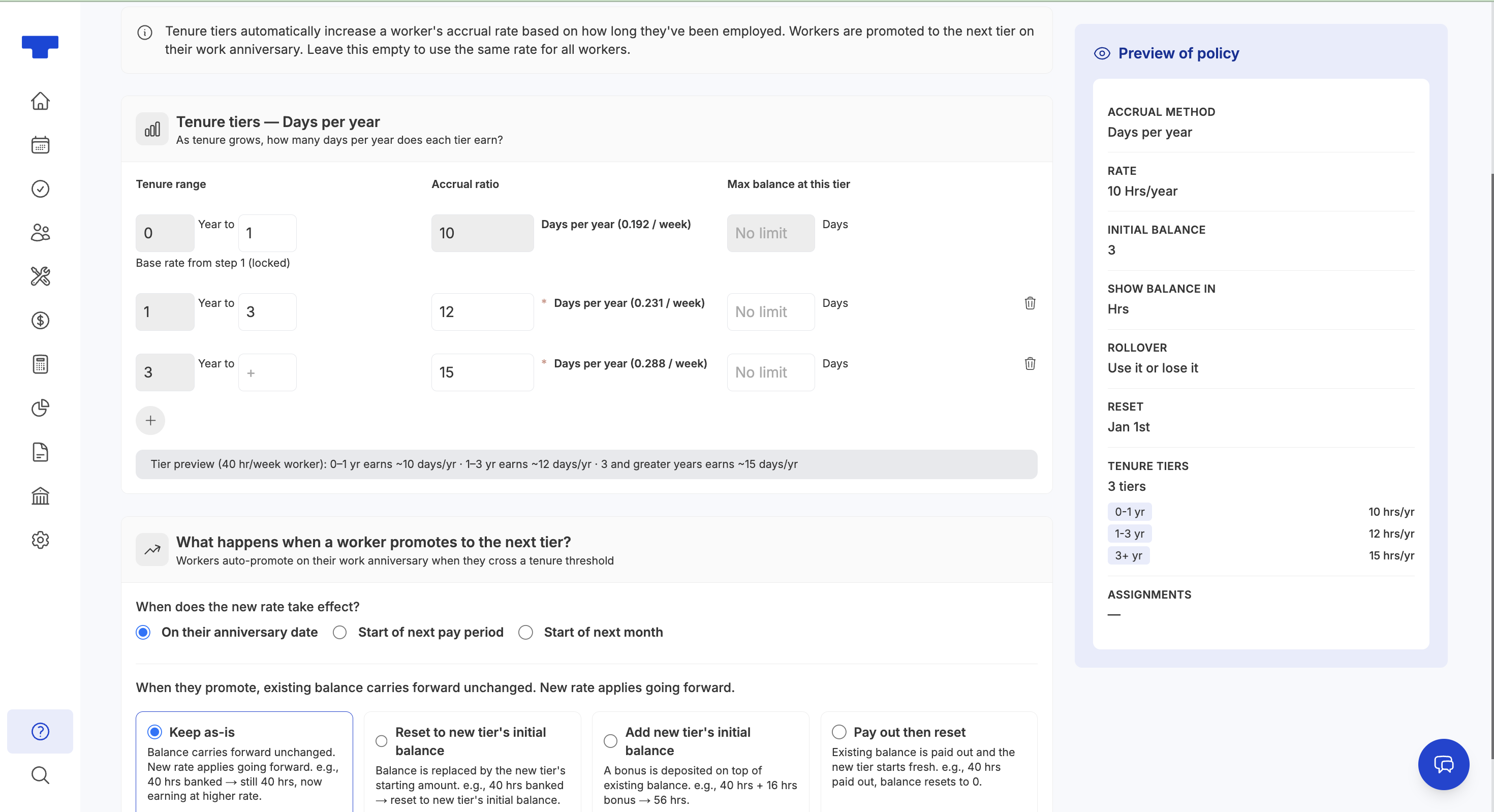
You can increase accrual rates based on worker tenure. Workers automatically move to the next tier based on tenure. Define:
Tenure ranges (e.g., 0–1 year, 1+ years)
Accrual rate per tier
Optional: Max balance per tier
When a worker moves to a new tier
Choose how balances behave:
Keep as-is
Reset to new tier’s initial balance
Add new tier’s initial balance
Pay out then reset
Also define when the new rate takes effect:
Anniversary date
Start of next pay period
Start of next month
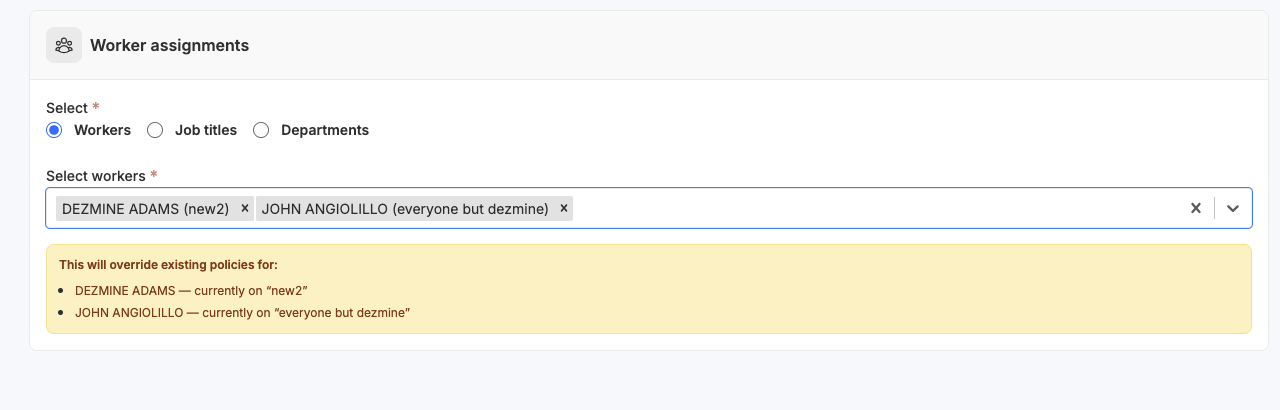
Step 6: Assign the policy
Apply the policy to:
Workers
Job titles
Departments
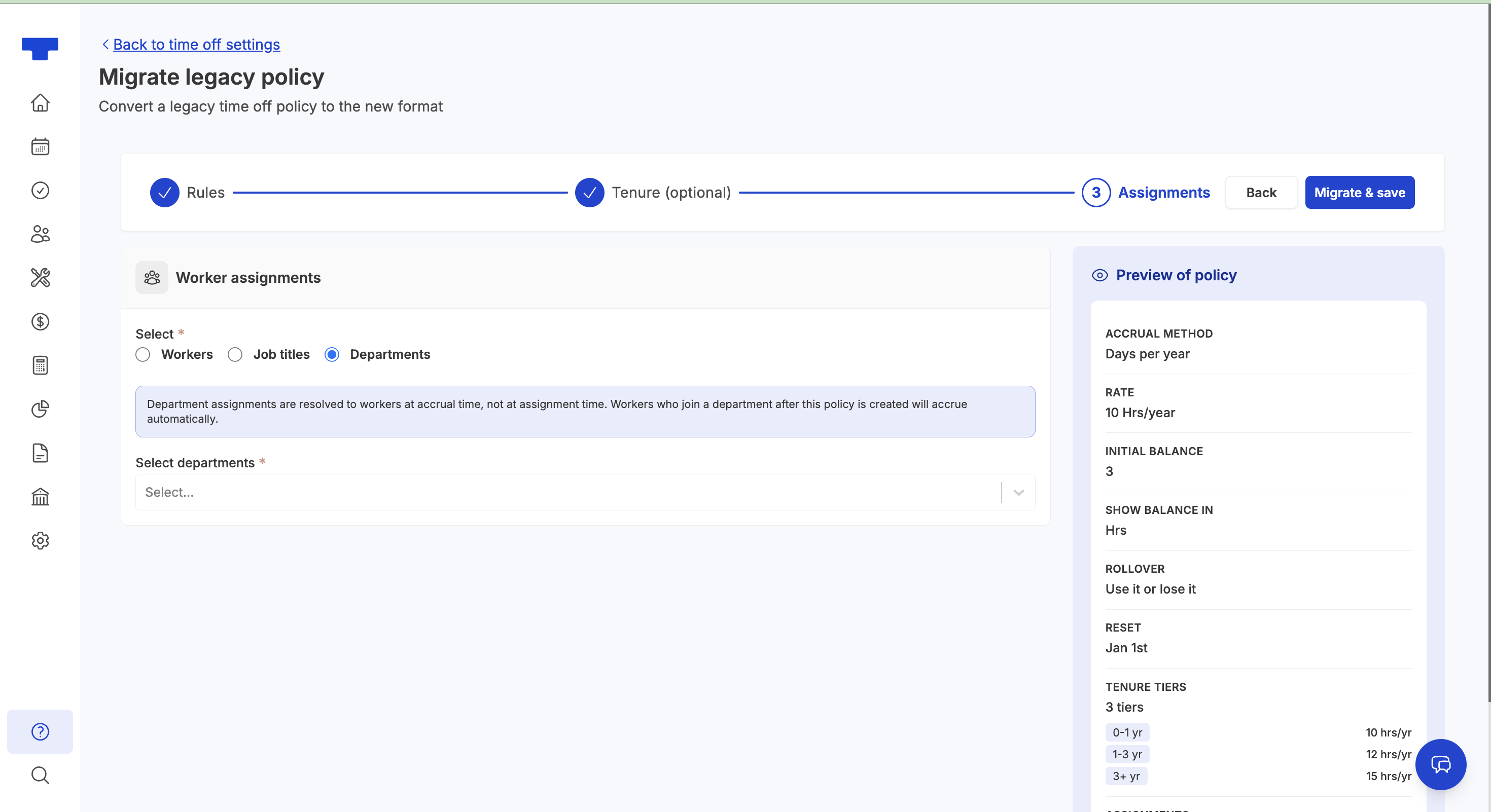
Notes: Job title assignments and Department assignments apply automatically as workers are added. Worker-level assignments override job titles.
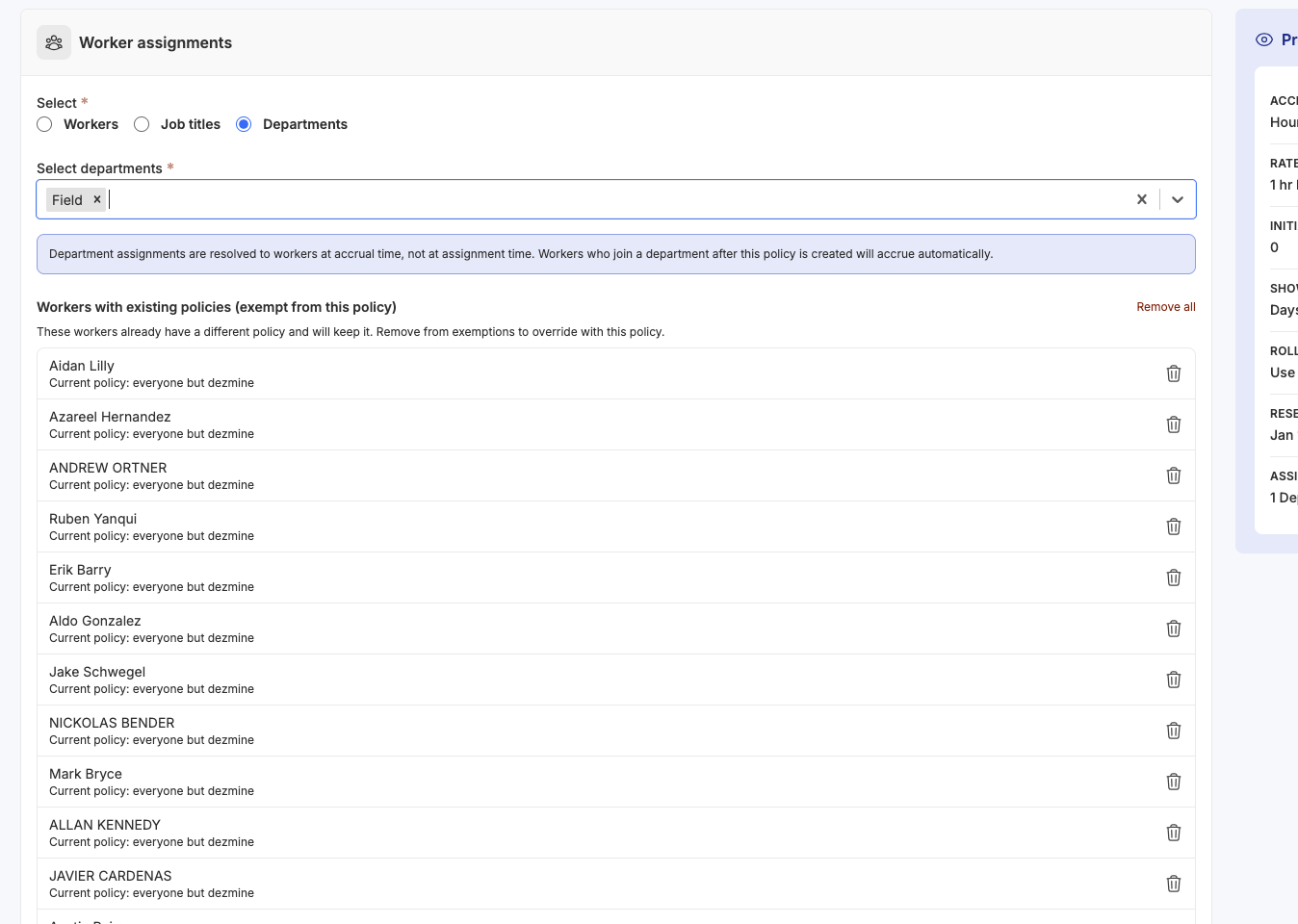
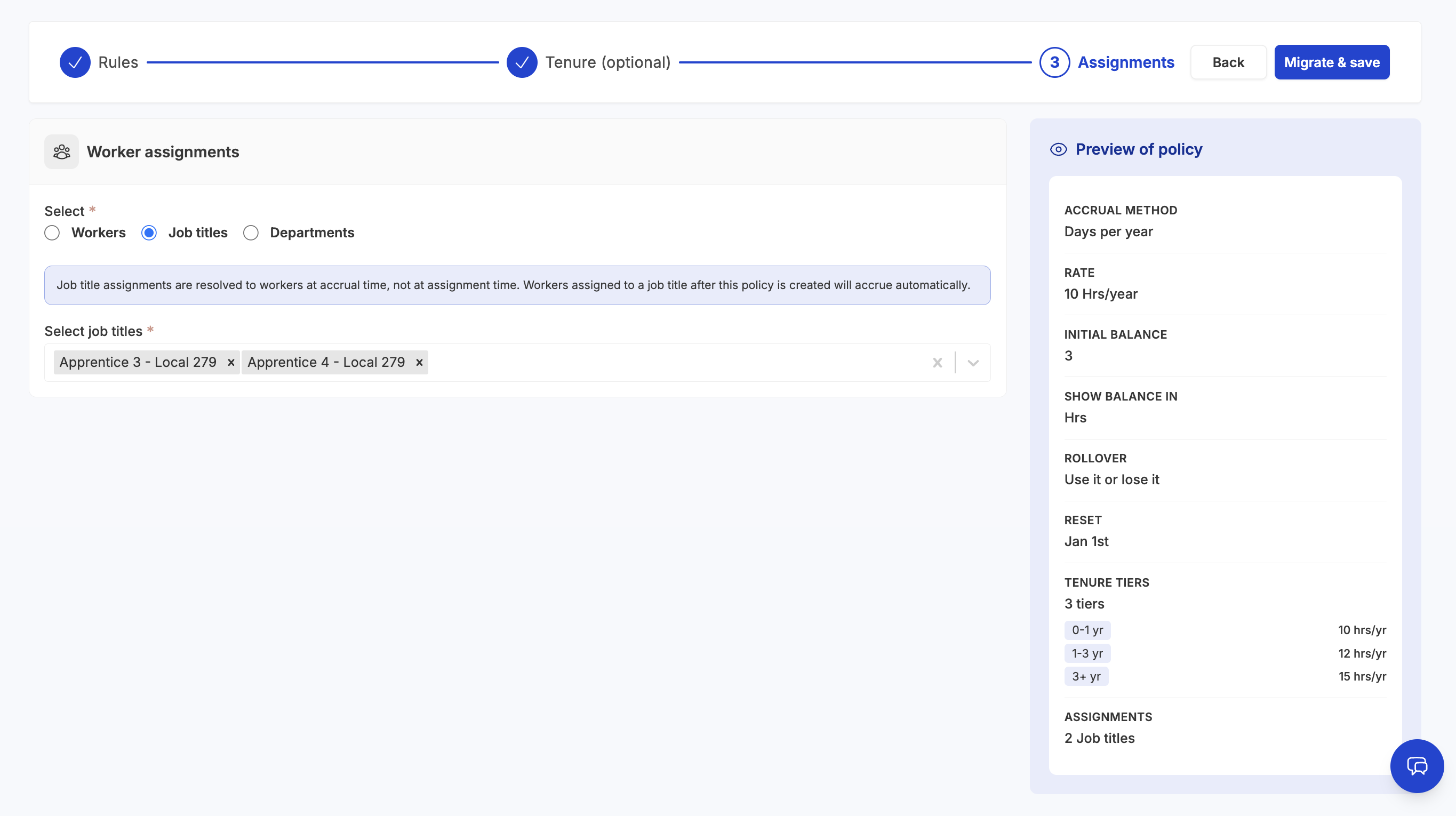
Preview panel
As you build your policy, the right-hand panel shows a live summary:
Accrual method
Rate
Initial balance
Rollover rules
Reset timing
Tenure tiers
Assignments
Summary
The new PTO policy flow gives you:
Multiple accrual methods (hourly, annual, fixed)
Flexible rollover and reset rules
Negative balance and payout controls
Tenure-based earning
Automated approval rules
Clear assignments and live preview
All in one place, with no impact to your current balances.