Sage Intacct Authentication for Trayd
Last updated: June 4, 2026
What you'll enter in Trayd
You'll provide five values:
Field | Where it comes from |
Sender ID | buildtraydMPP |
Sender password | Trayd%Trayd123! |
Company ID | Your Intacct company ID |
User ID | A Web Services user that you create in Intacct |
User password | The password set on that Web Services user |
Step 1 — Enable Web Services Subscription
To connect with Trayd, you must have access to the Sage Intacct Web Services Module.
Contact your Sage Intacct account manager to enable the Web Services license. This "Web Services" license comes with a "Sender ID" and "Sender Password".
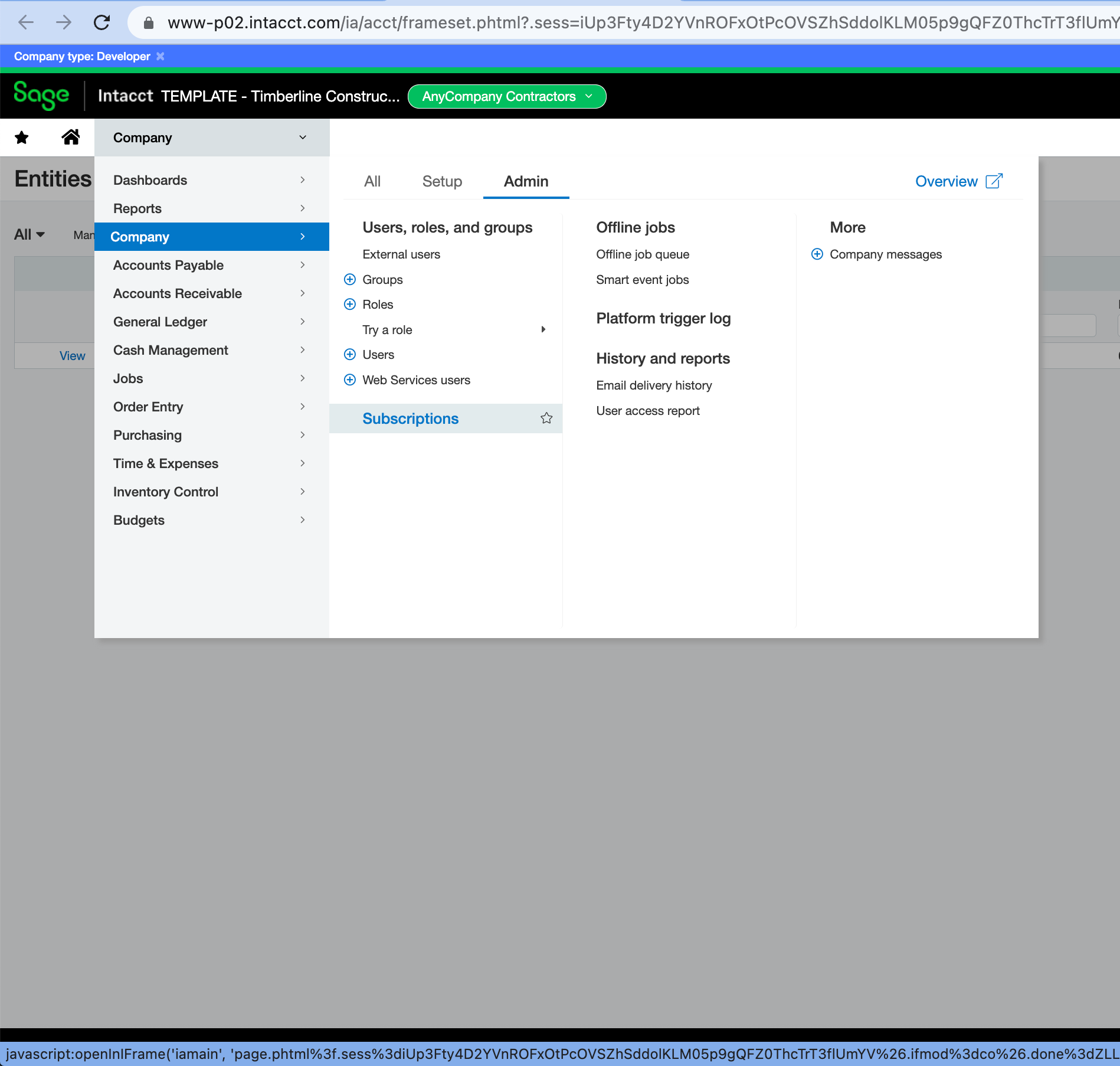
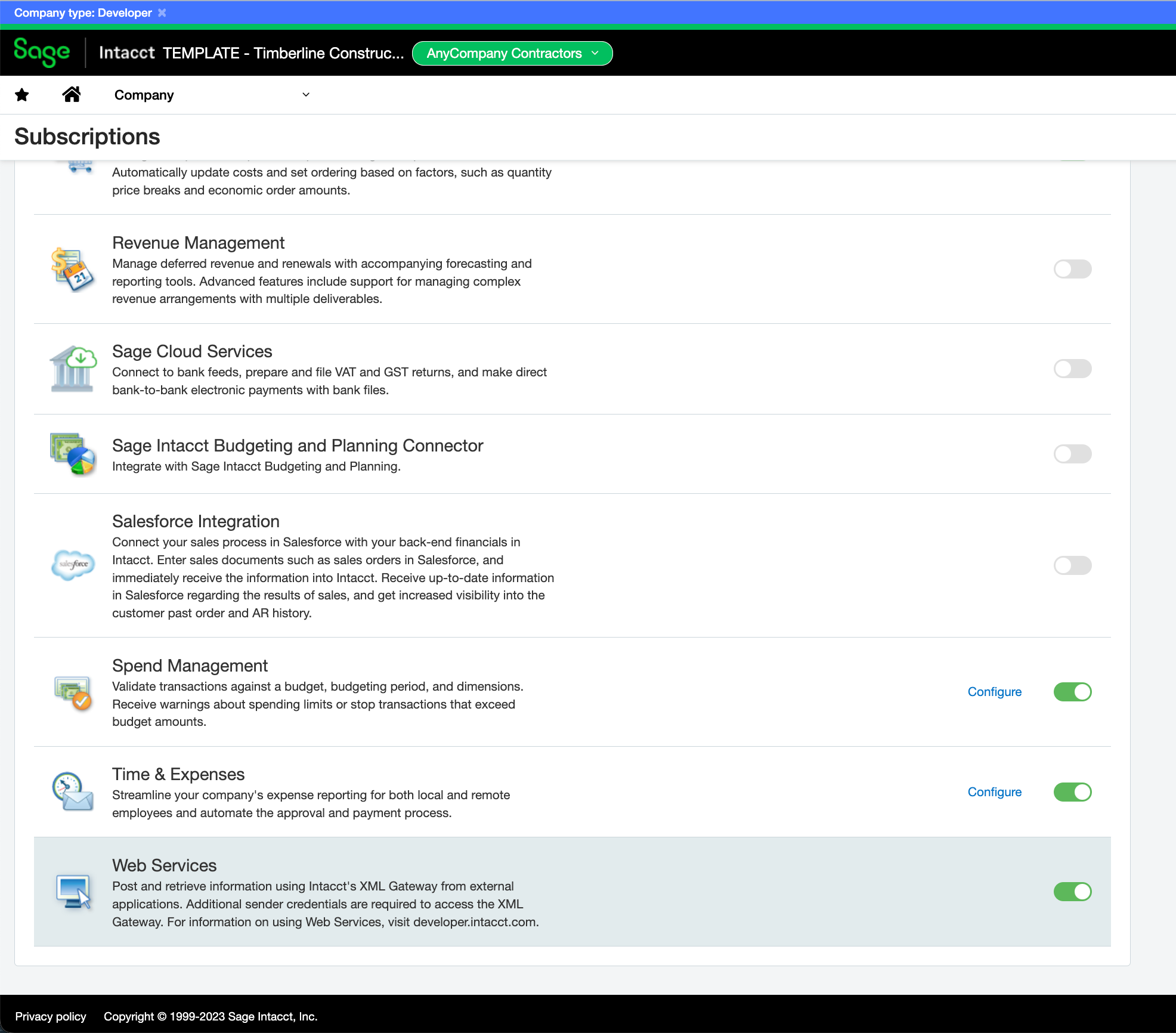
Enable the Web Services subscription under Company > Admin > Subscriptions.
Scroll to the bottom of the page and enable the Web Services subscription.
Step 2 — Authorize Web Service Sender ID
To authorize your Web Service Sender ID:
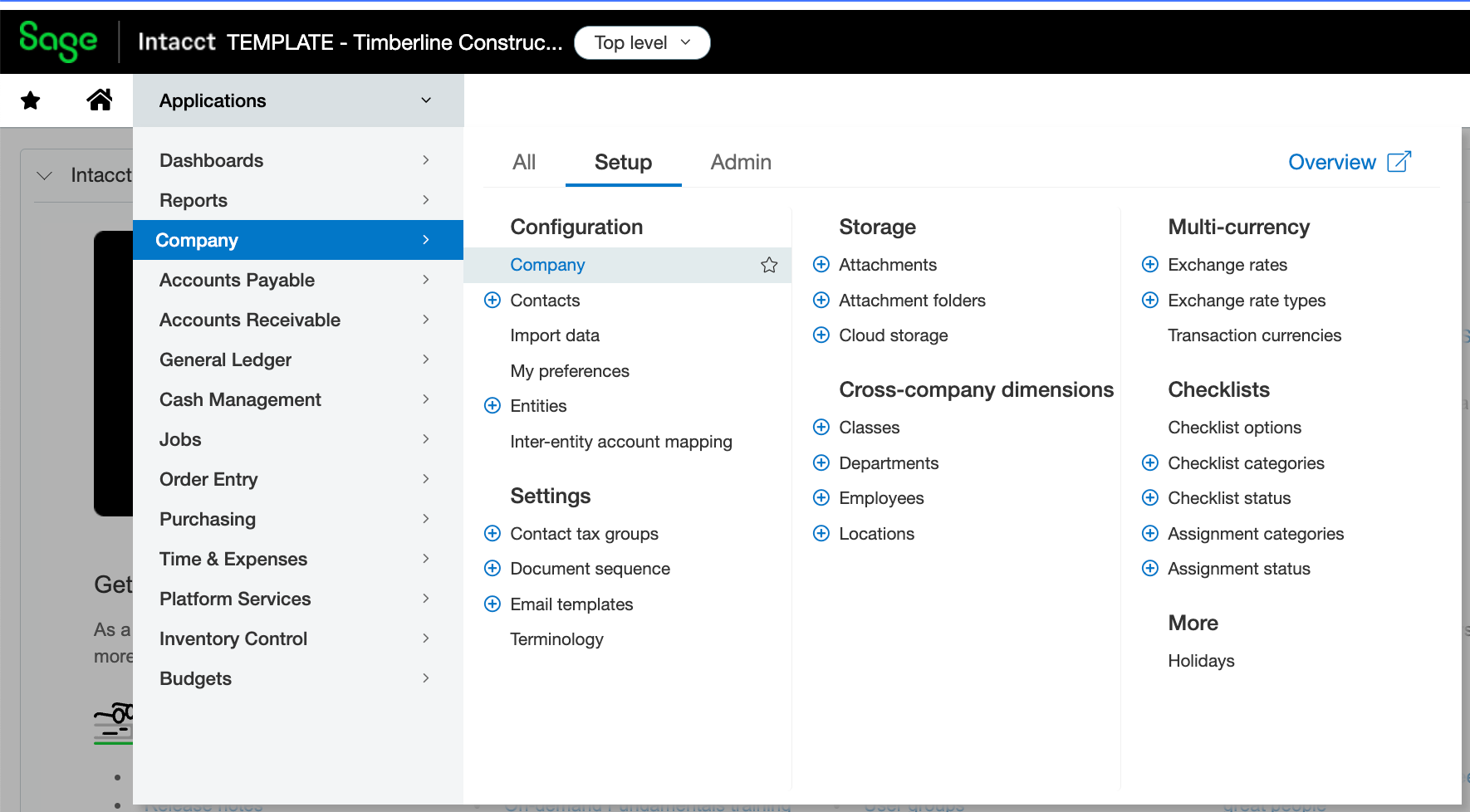
Select Company > Setup > Company (under Configuration).
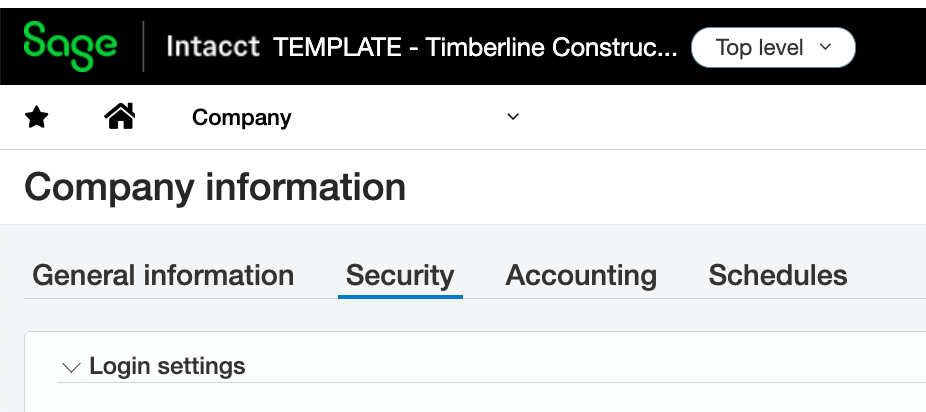
Select Security.
Scroll down to Web Services Authorizations, and press Add.
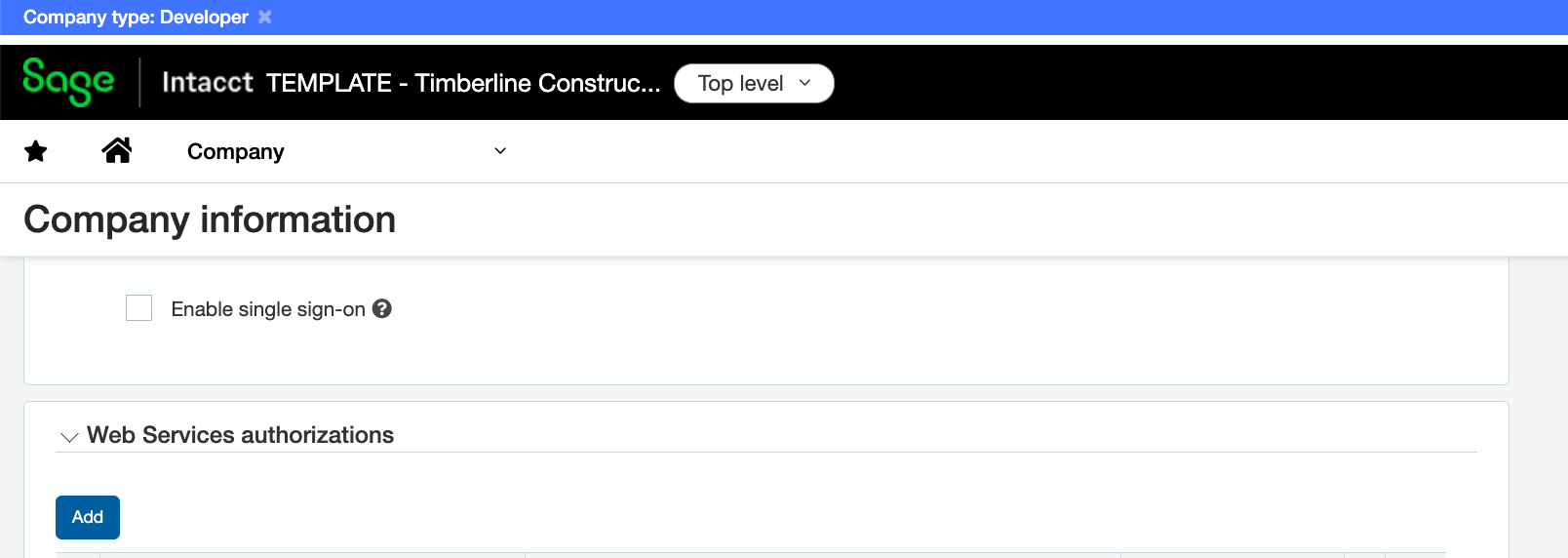
Input details for your Sender ID and press Save.
Step 3 — Create a Web Services user
A Web Service User allows Trayd to read and write data to and from Sage Intacct without needing to log in to the Sage Intacct UI.
To create a Web Service User:
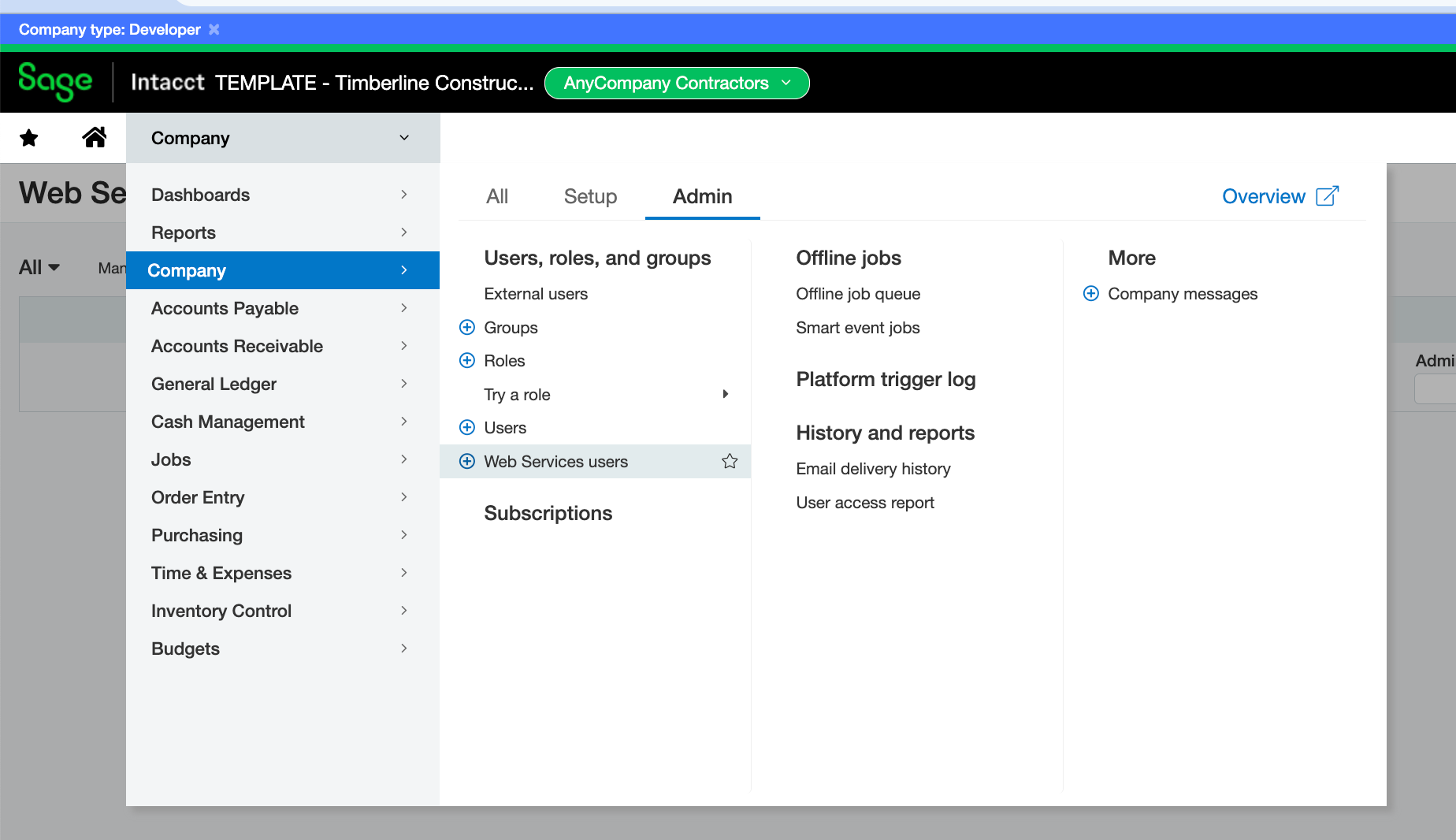
Select Company > Company > Web Service Users:
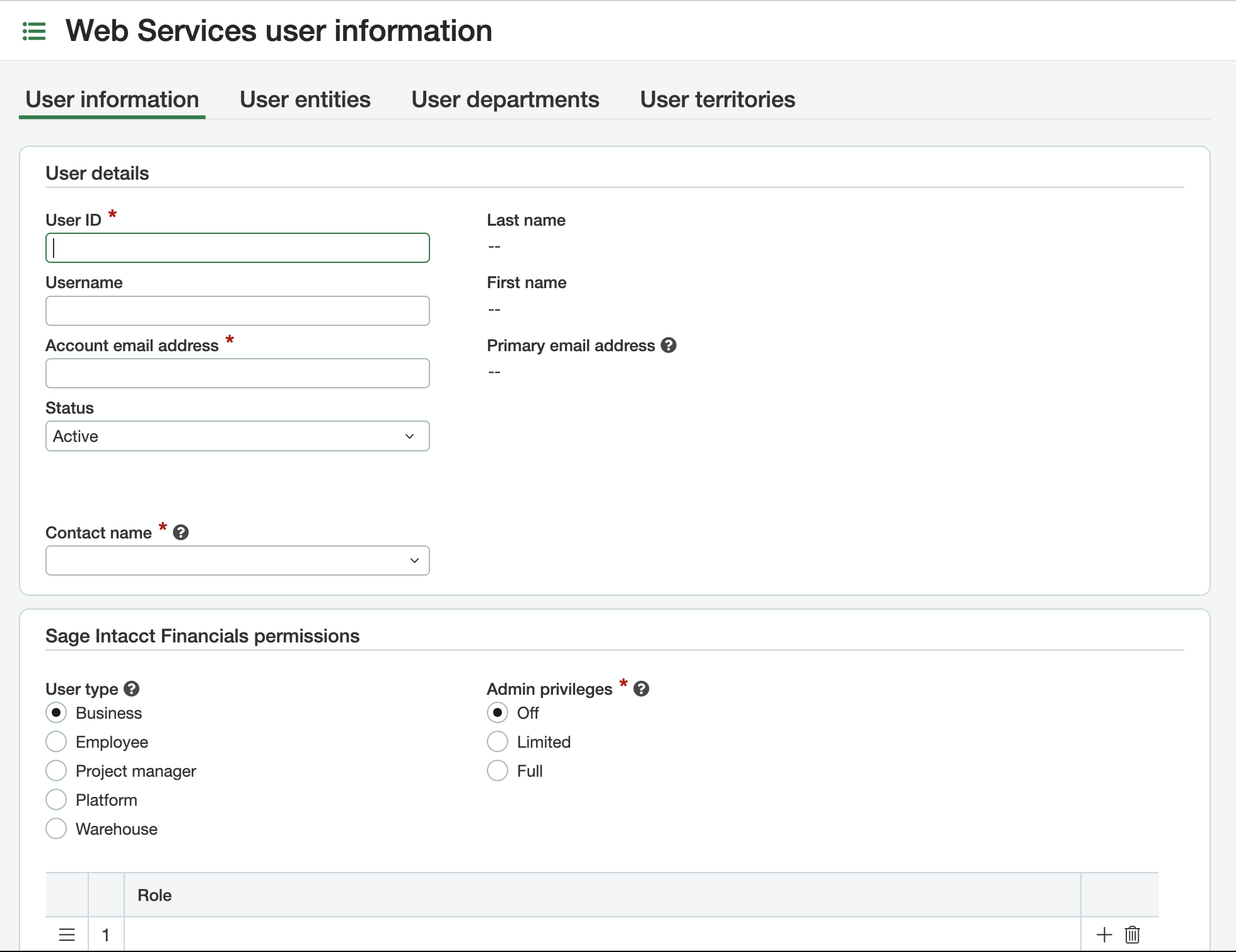
Add details on the Web Service User.
To ensure the Web Service User has the proper permissions, go to Company > Admin > Roles:
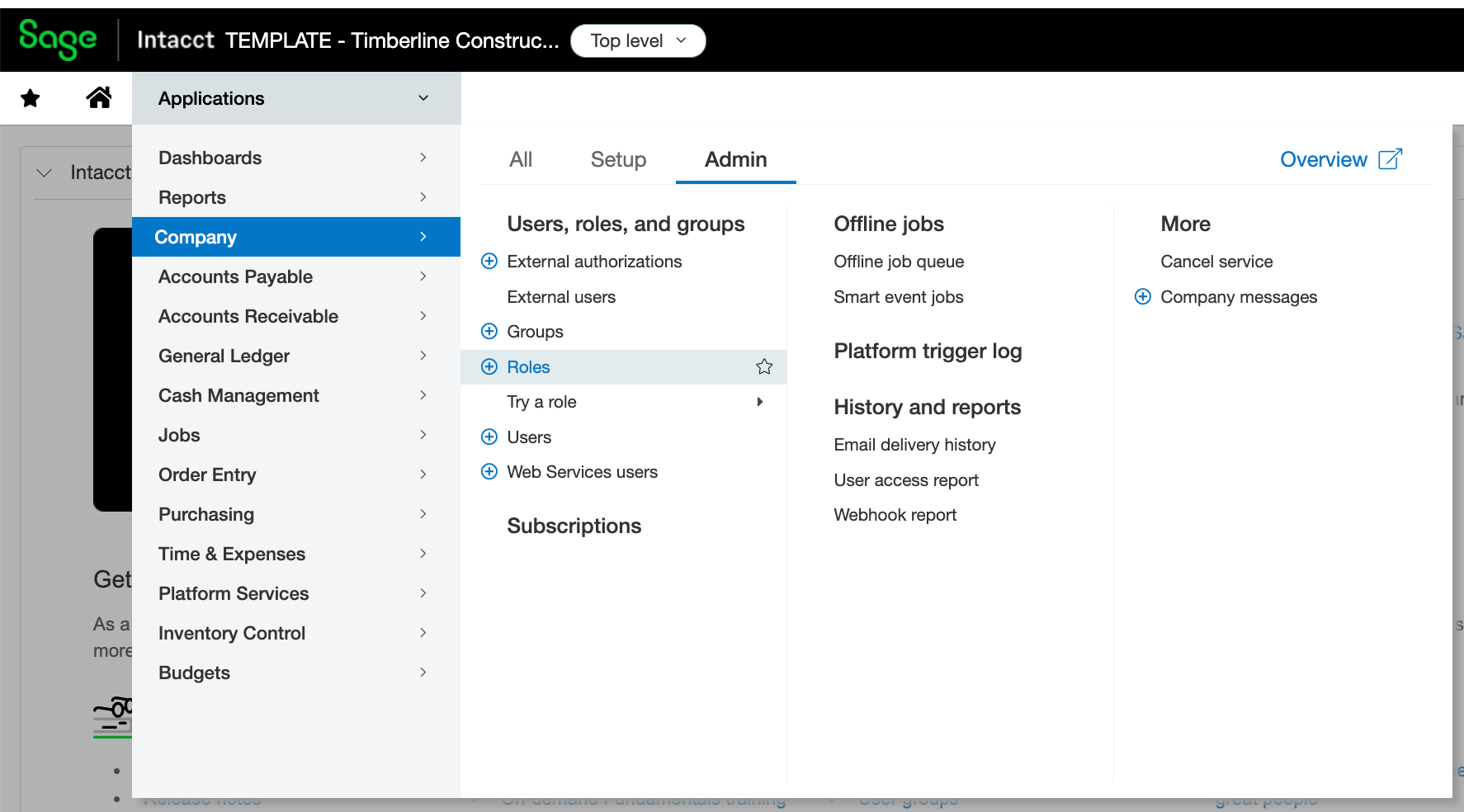
Select Add.
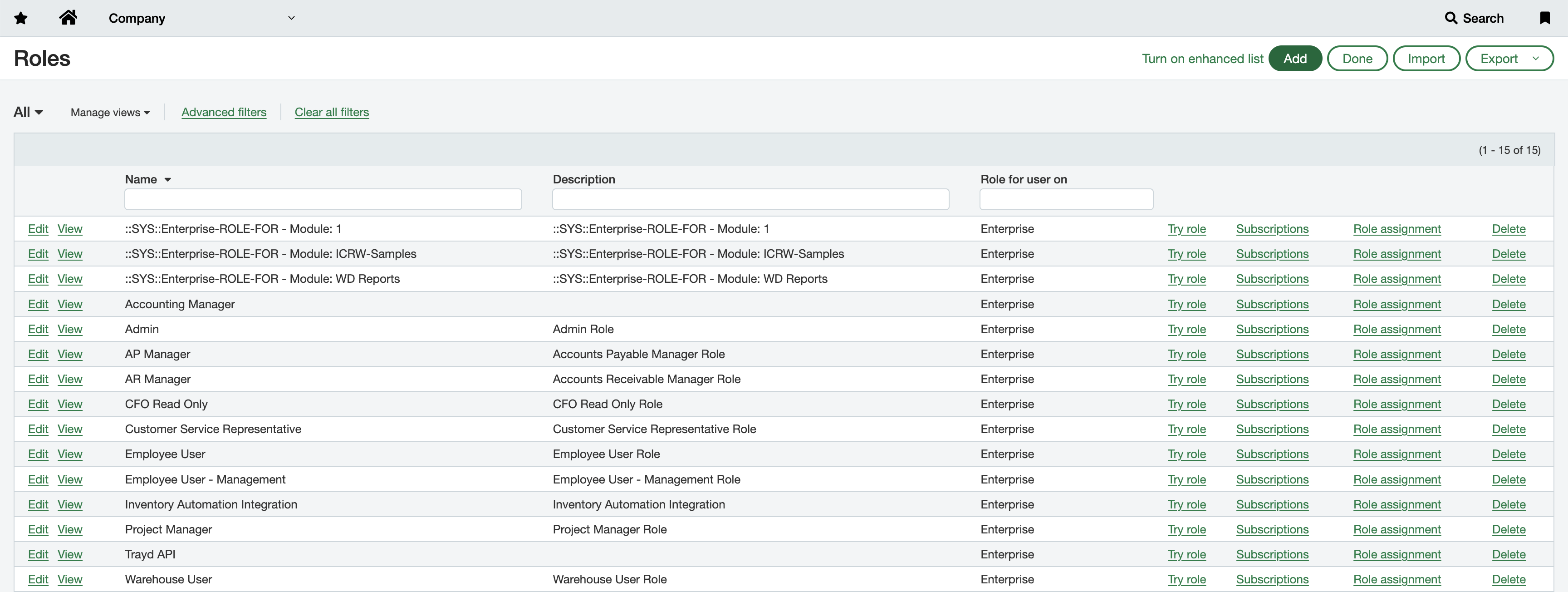
Add a Description for the Role.
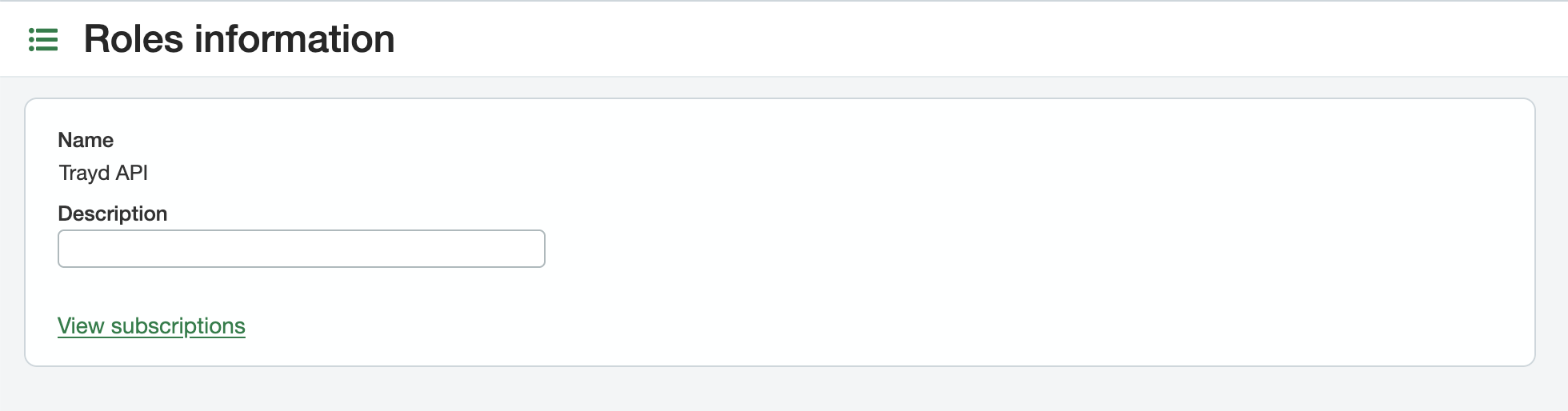
Select View Subscriptions, and select the relevant Permissions you want to enable and press Save:
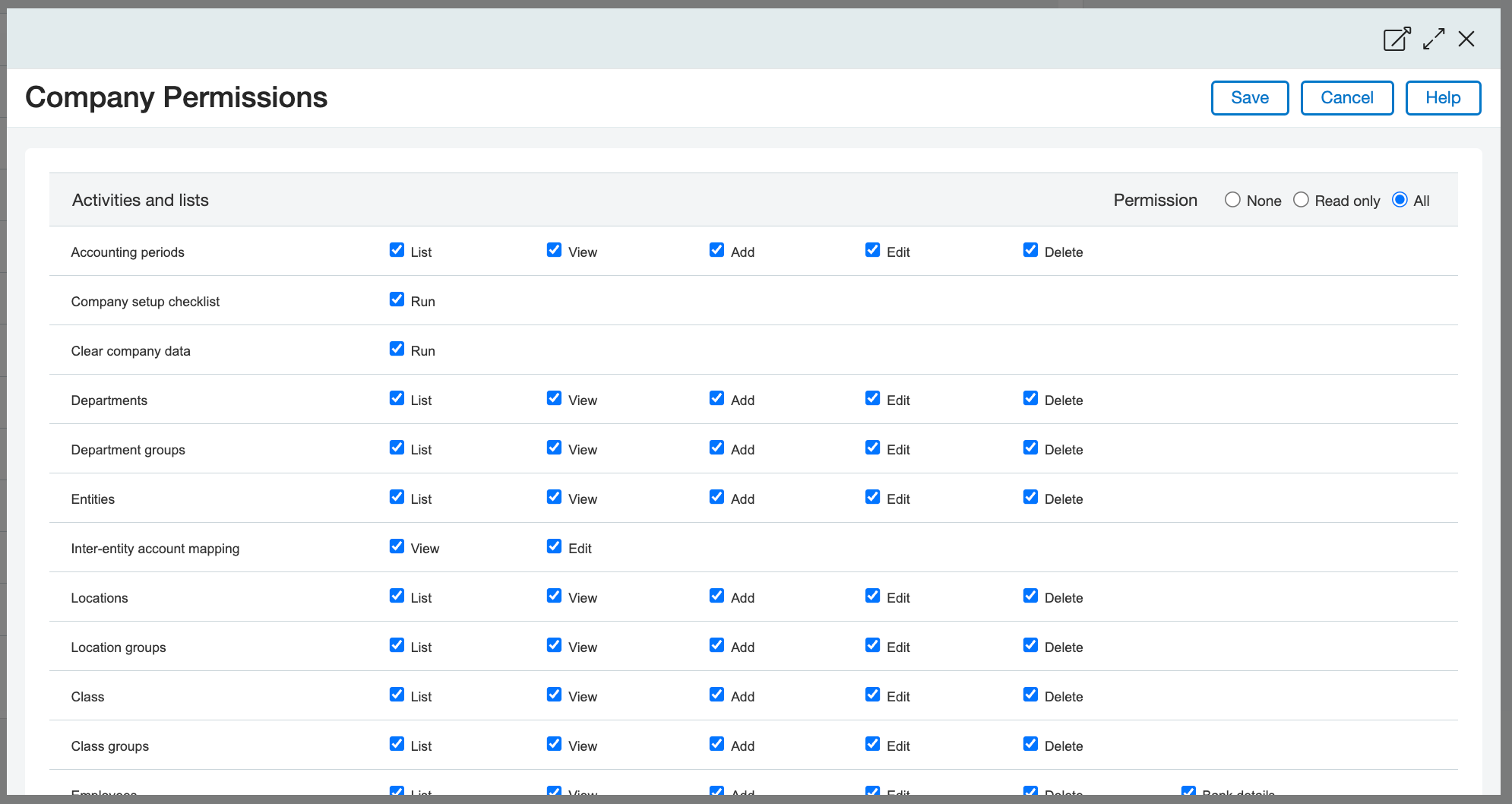
NOTE:
Depending on your integration needs, you will likely want to enable the Company, General Ledger, Accounts Payable, Accounts Receivable, Jobs, Order Entry, and Purchasing modules.
Return to the Web Service User page. Under the Roles Information tab, add the above Role for the Web Service User.
Step 4 — Find your Company ID
To determine your Company ID, select Applications > Overview:
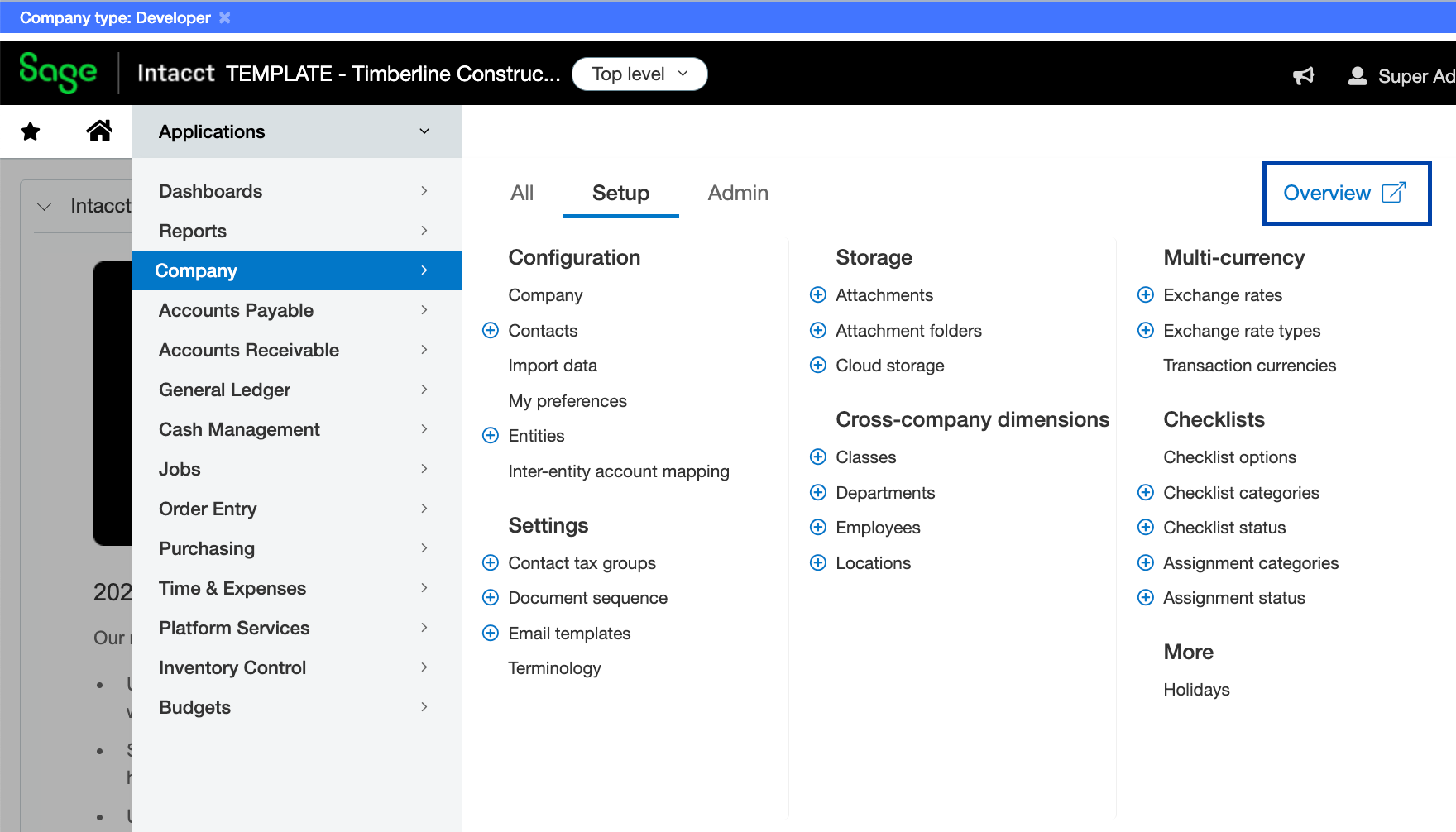
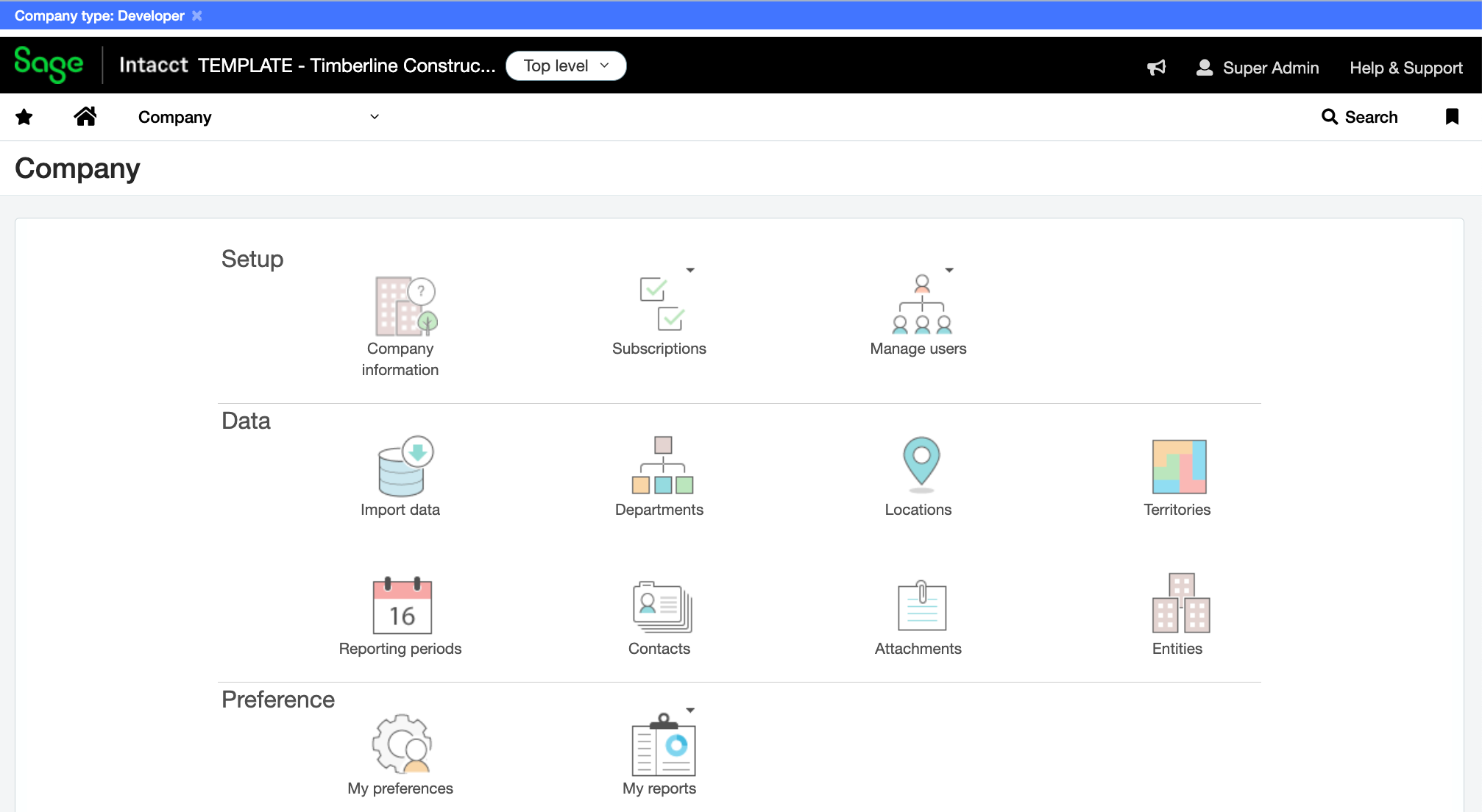
Then select Company Information to see your Company ID:
Troubleshooting
"Invalid Web Services Authorization" — the Sender ID is not authorized in Intacct, or its status is Inactive. Return to Step 2.
"XL03000009 Sign-in information is incorrect" — the User ID or password is incorrect, or the user is Inactive. Return Step 3.
"Permission denied" — the Web Services user does not have permission for the module being synced. Grant the missing module permission.
For further help, contact Trayd support.