How to Bulk Import Custom Back Office Data into Worker Profiles
Last updated: June 11, 2026
Import employee data into custom back office fields using a CSV upload
Overview
Custom back office fields allow you to capture additional employee data beyond standard worker profile information. Once created, these fields can be populated in bulk using a CSV import, making it easier to manage and update employee records at scale.
How to Import Custom Fields
Set Up Custom Fields
Before importing data, you must first create the custom fields that will store it.
Navigate to Settings > HR and People > Employee Settings
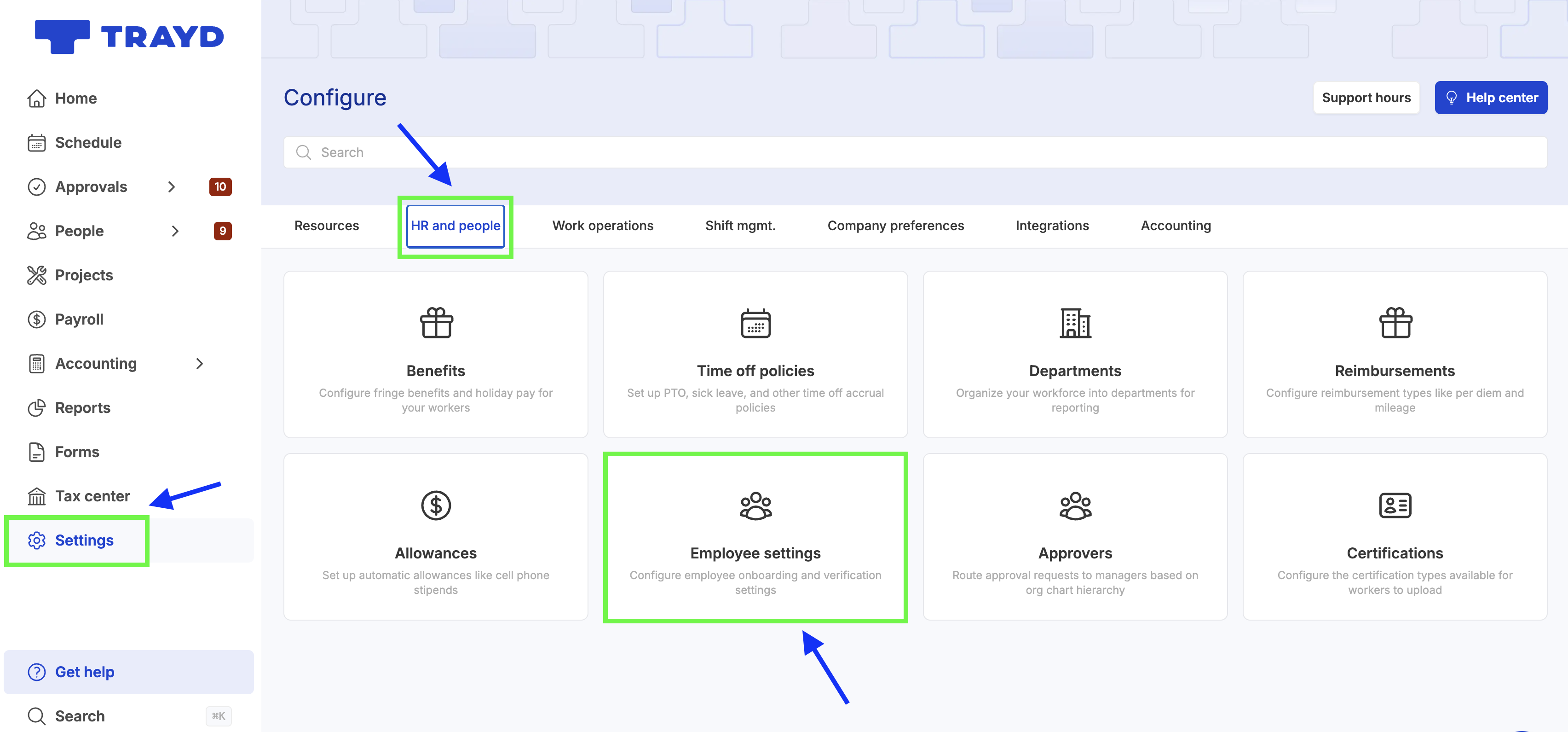
Click Worker Fields
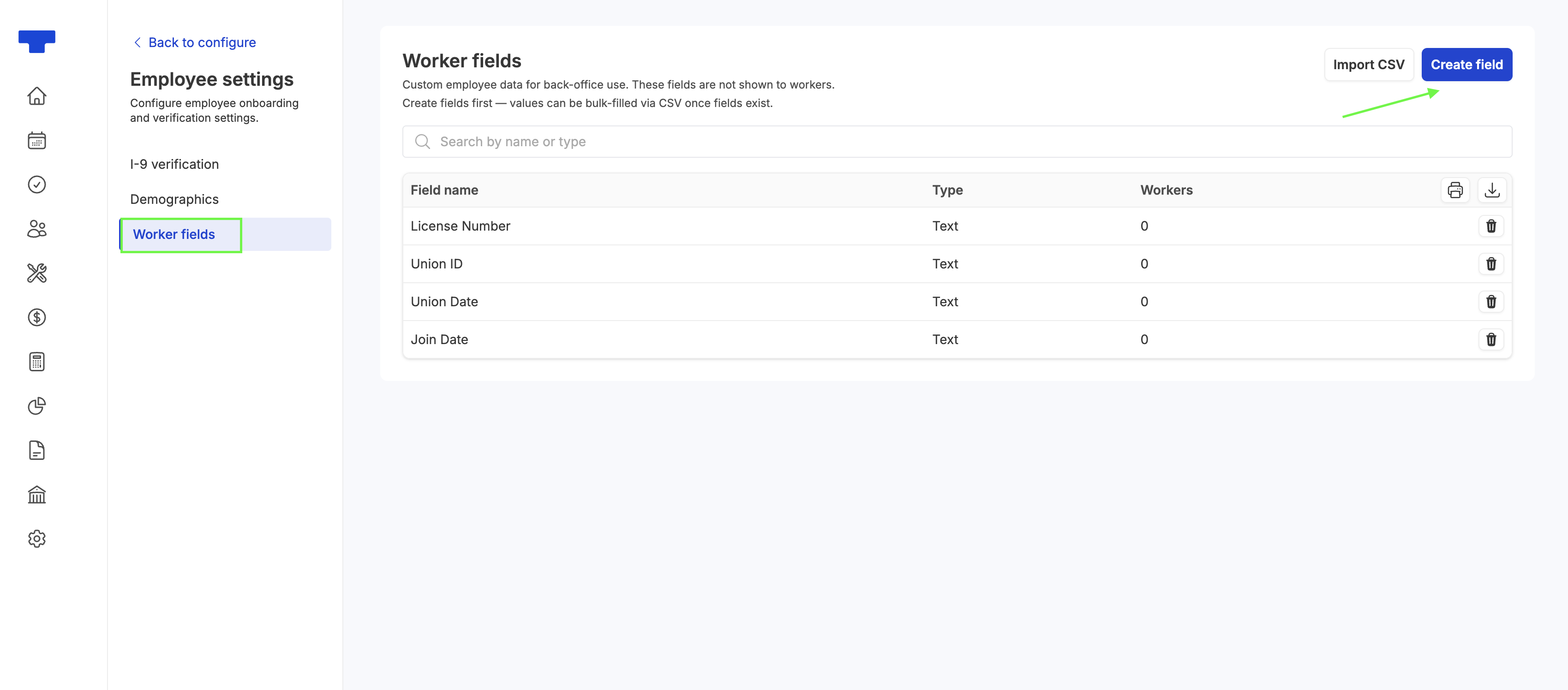
Click Create Field
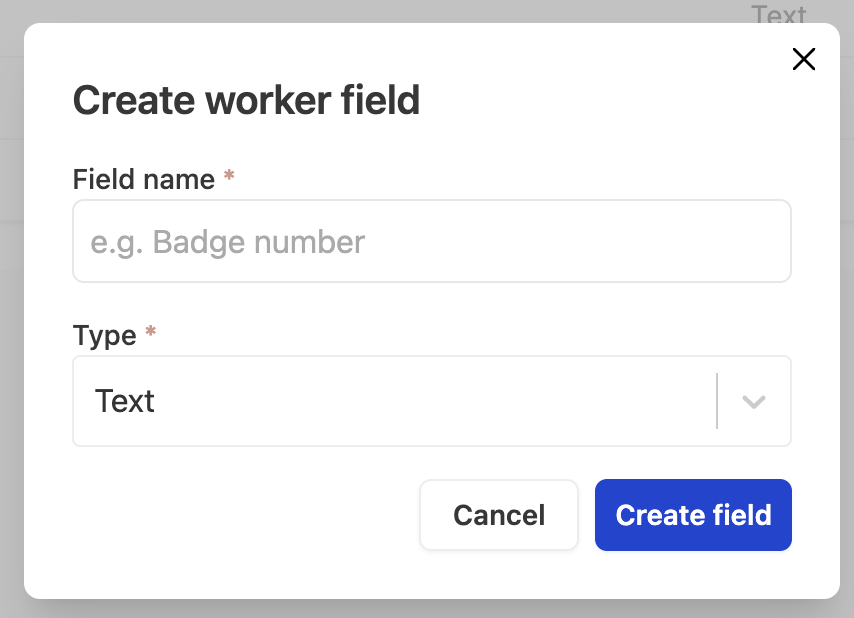
Enter the required details:
Field name: The label for the data point. This will appear on employee profiles.
Type: Select the data type for the field (text, number, or date)
Click Create Field
Repeat this process until all required fields have been created.
Note: These fields are only visible to the back office and cannot be viewed or edited by workers. If you need a custom field to be added and viewable by workers, please see 📄 Onboarding Forms with Custom Worker Profile Fields
Prepare Your CSV Import
Once your fields are set up, you can prepare your data for import.
Click Import CSV to download the template
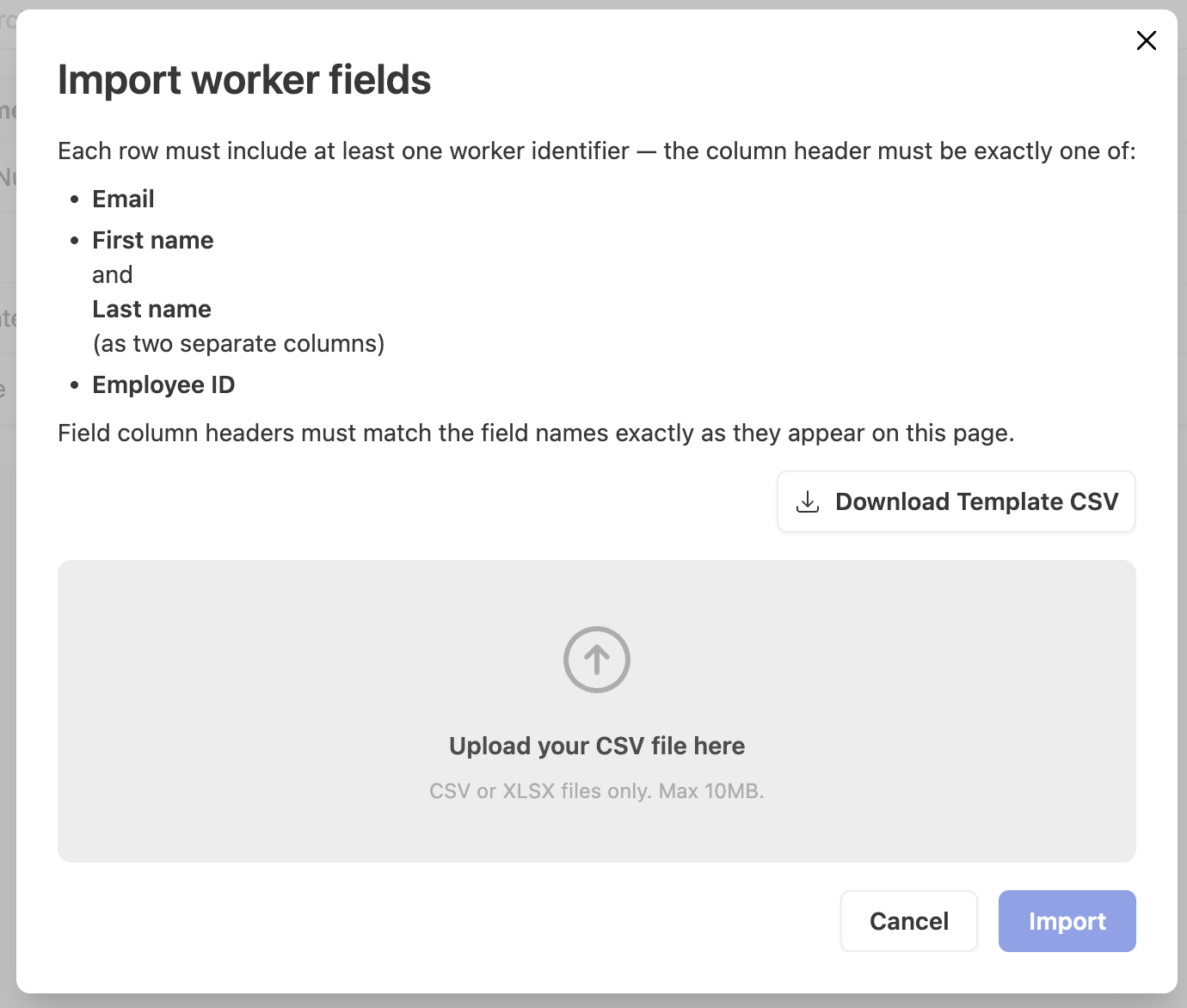
Fill out the CSV file with your employee data
Ensure you include only one valid employee identifier:
Email
First Name and Last Name (include two columns, one for each field)
Employee ID
Add the custom field data for each employee
Confirm that every column in your CSV matches an existing custom field and uses the correct field type
Import Your Data
Once your CSV is ready:
Upload the file
Click Import to process the data
If your import fails, use the error module to identify what needs to be corrected and update your file before reimporting.
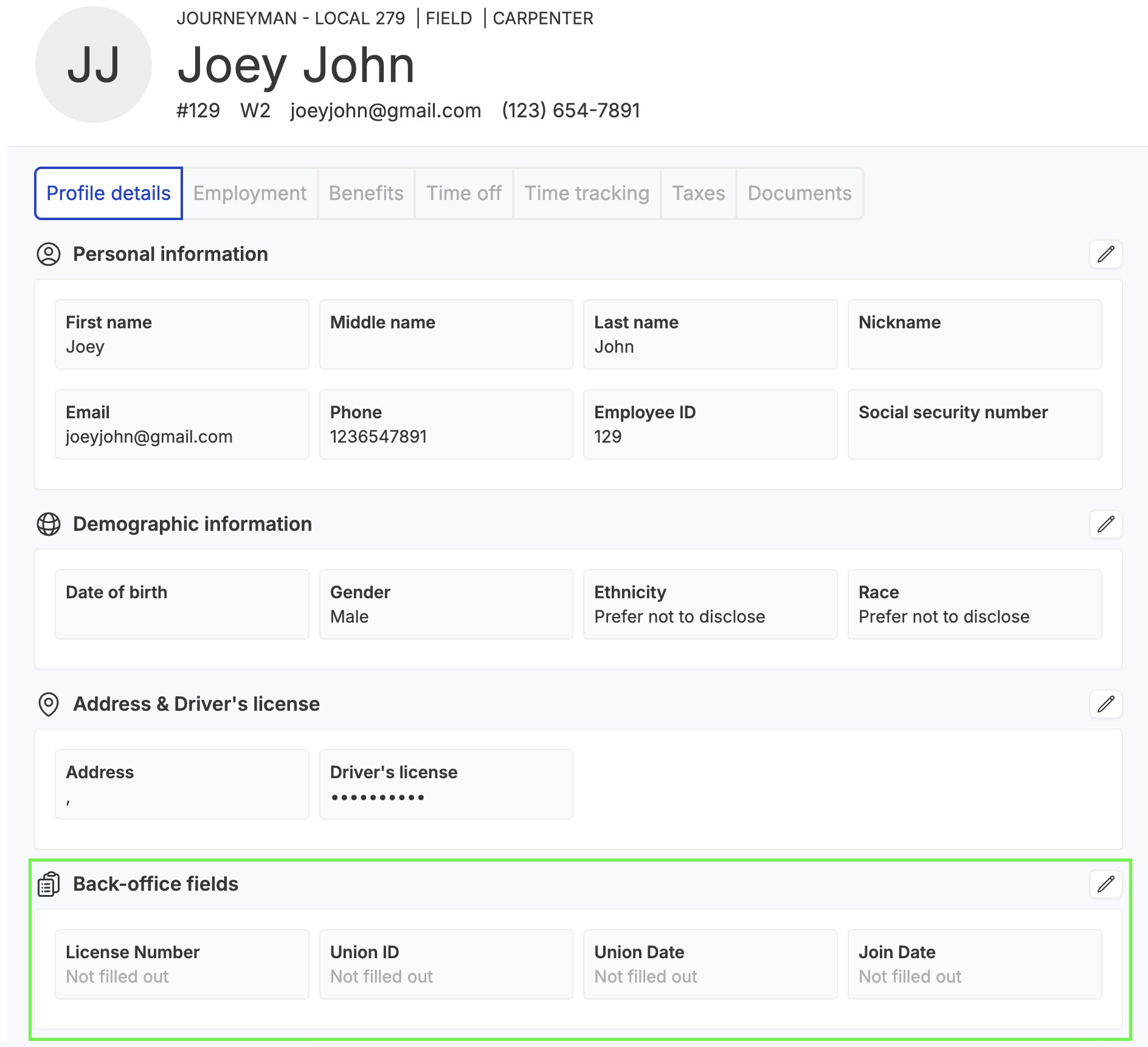
Your custom fields will be populated on each worker profile and become available for reporting. Navigate to any employee's profile in the Peoples tab to see back office fields.